Configure "Main Banner" Section
Description: Set up the main banner section with background images, colors, and slider content.
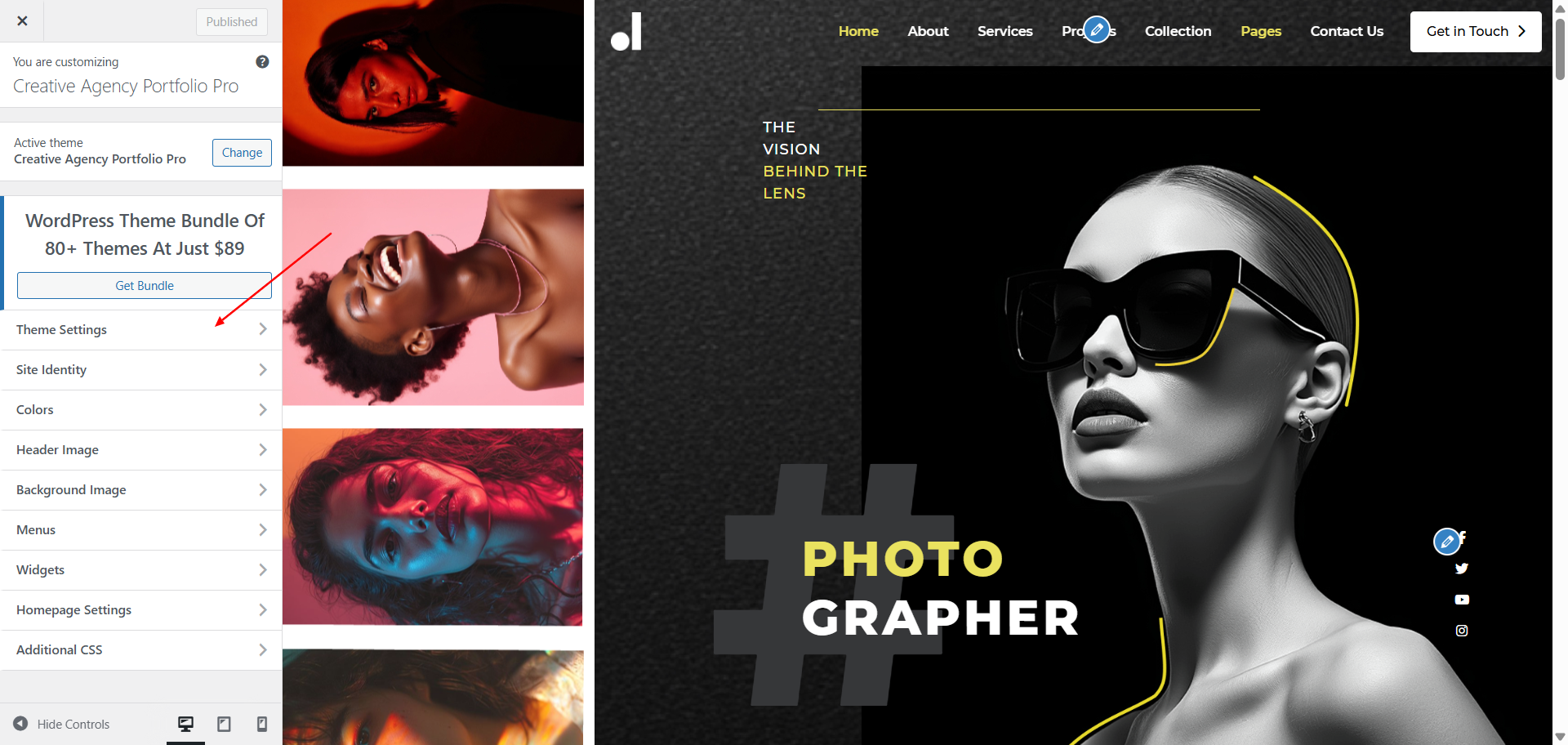
Open "Main Banner" from the Theme Settings panel in the Customizer.
Update background visuals using "Background Color" and
Update the content as specified below.
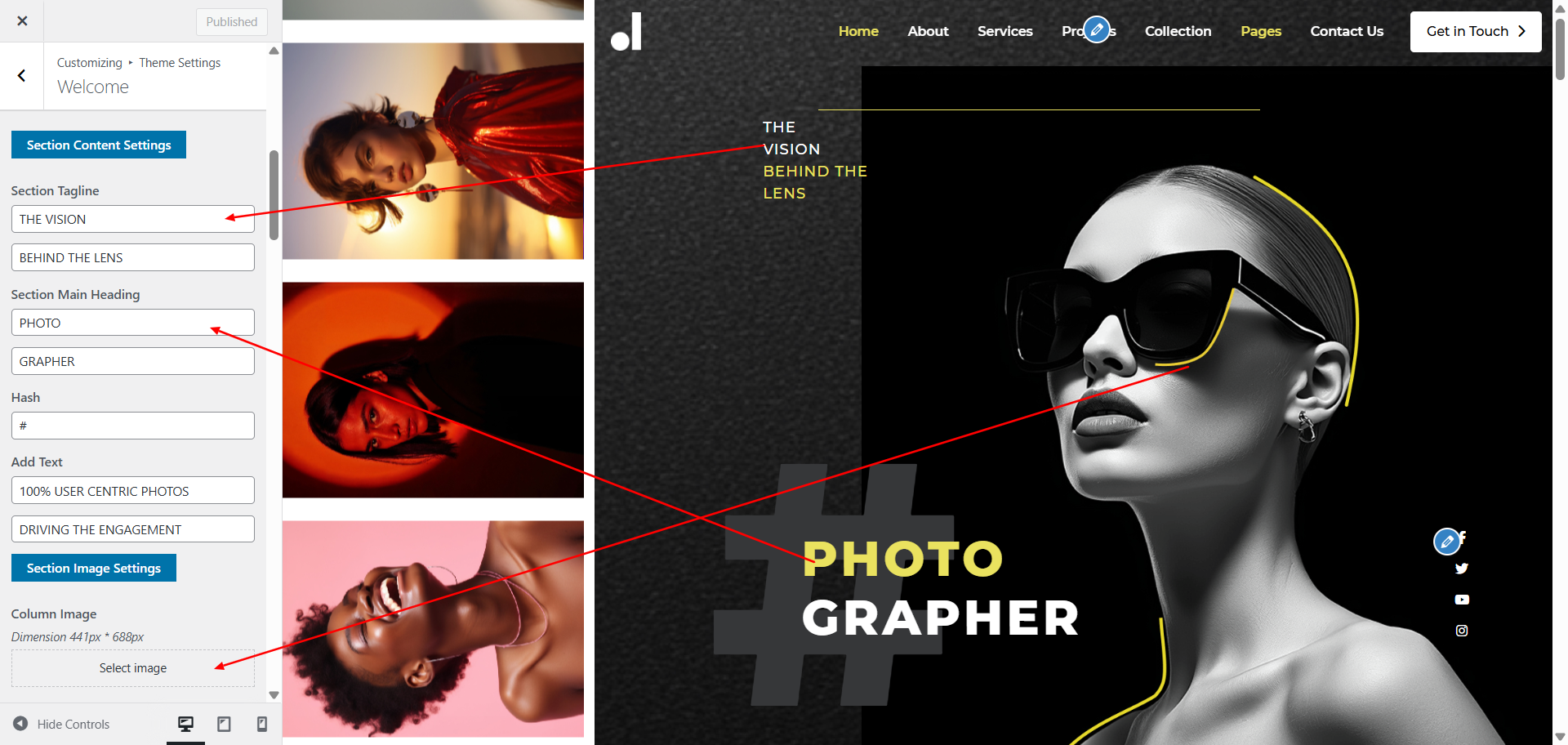
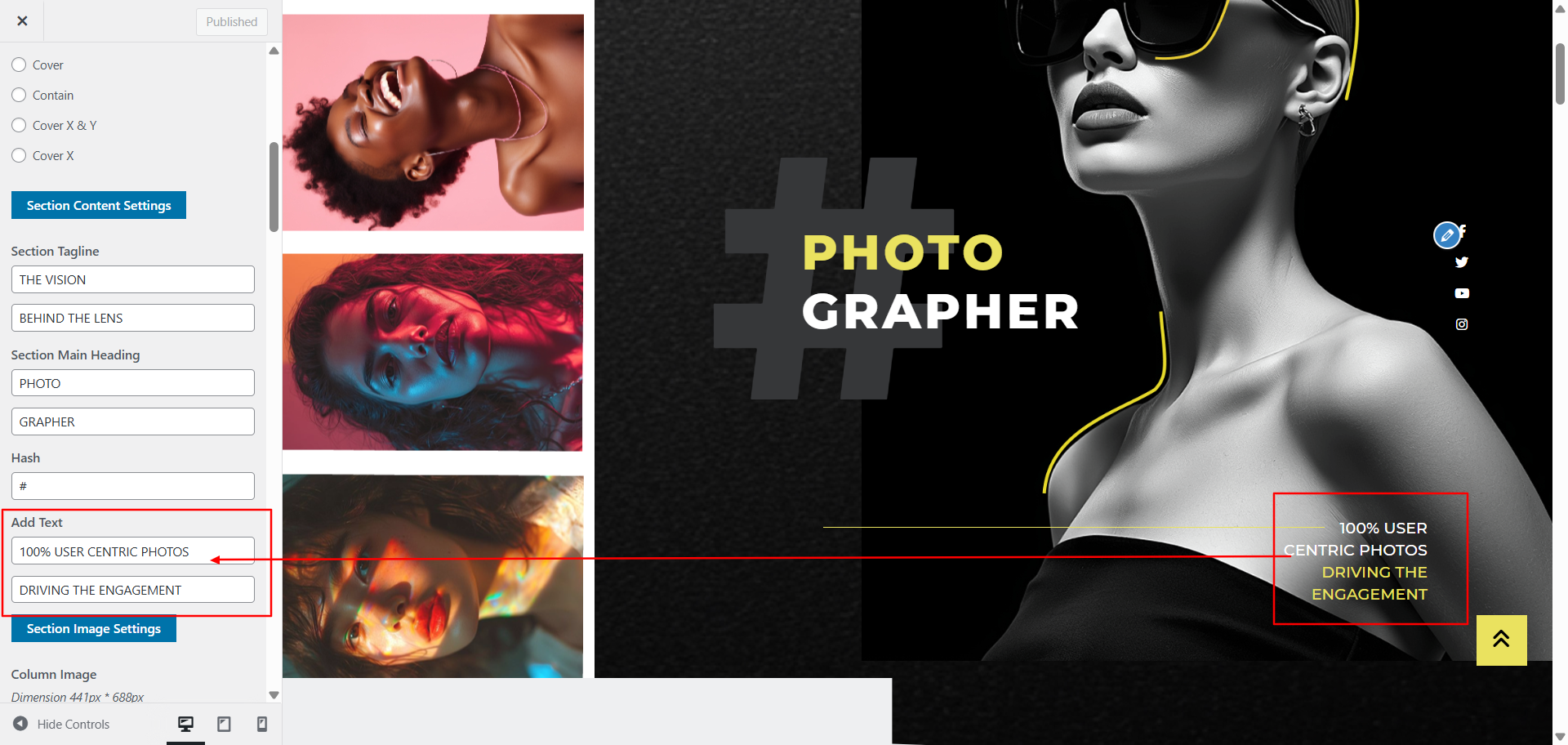
Update images of vertical slider.
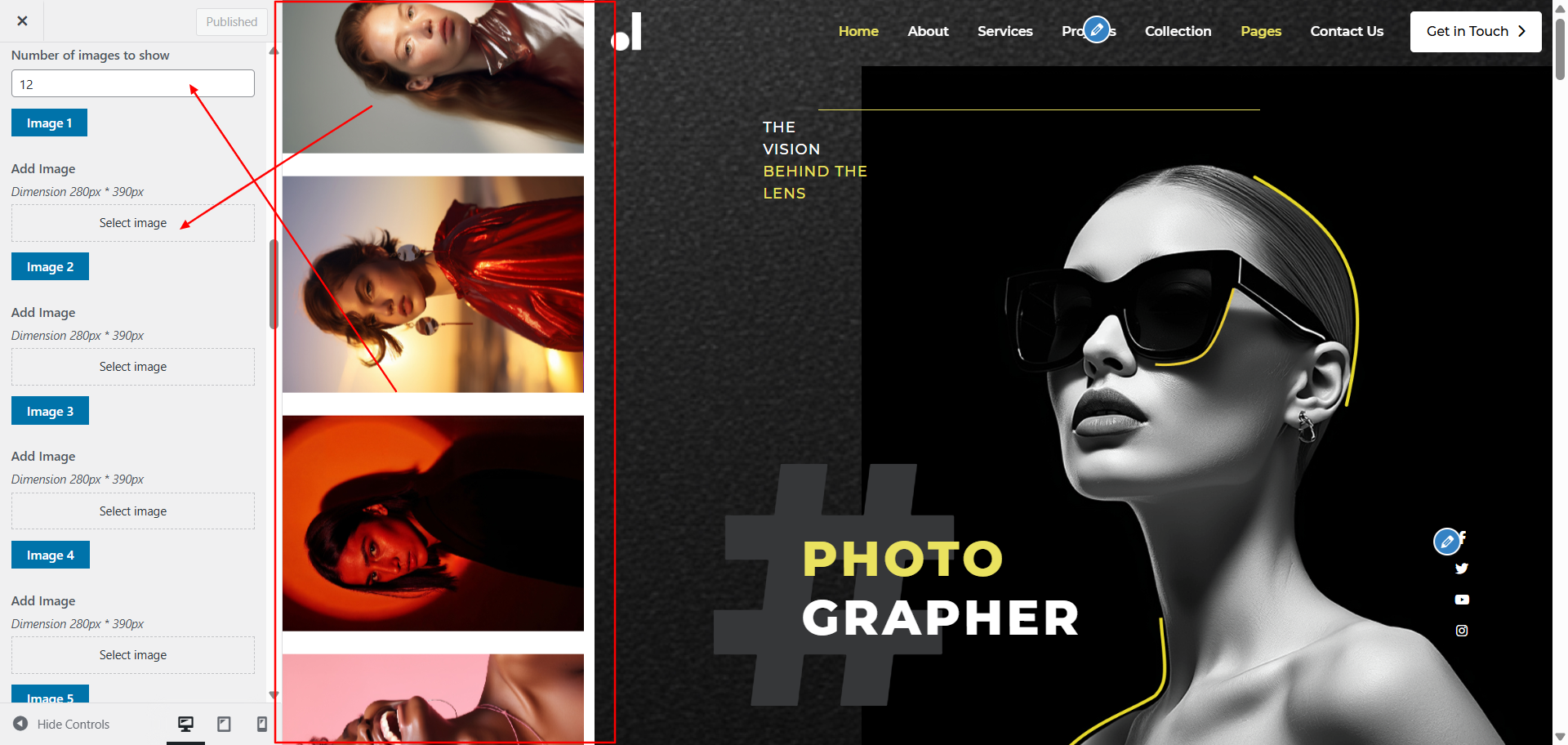
Scroll down to see all the color customization options for this section.
Configure "About Us"
Description: Add information about your agency, including images and background customization.
Open Theme Settings → About Us in the Customizer.
Customize background color and image settings using the available options.
Update content as specified in the below screenshots.
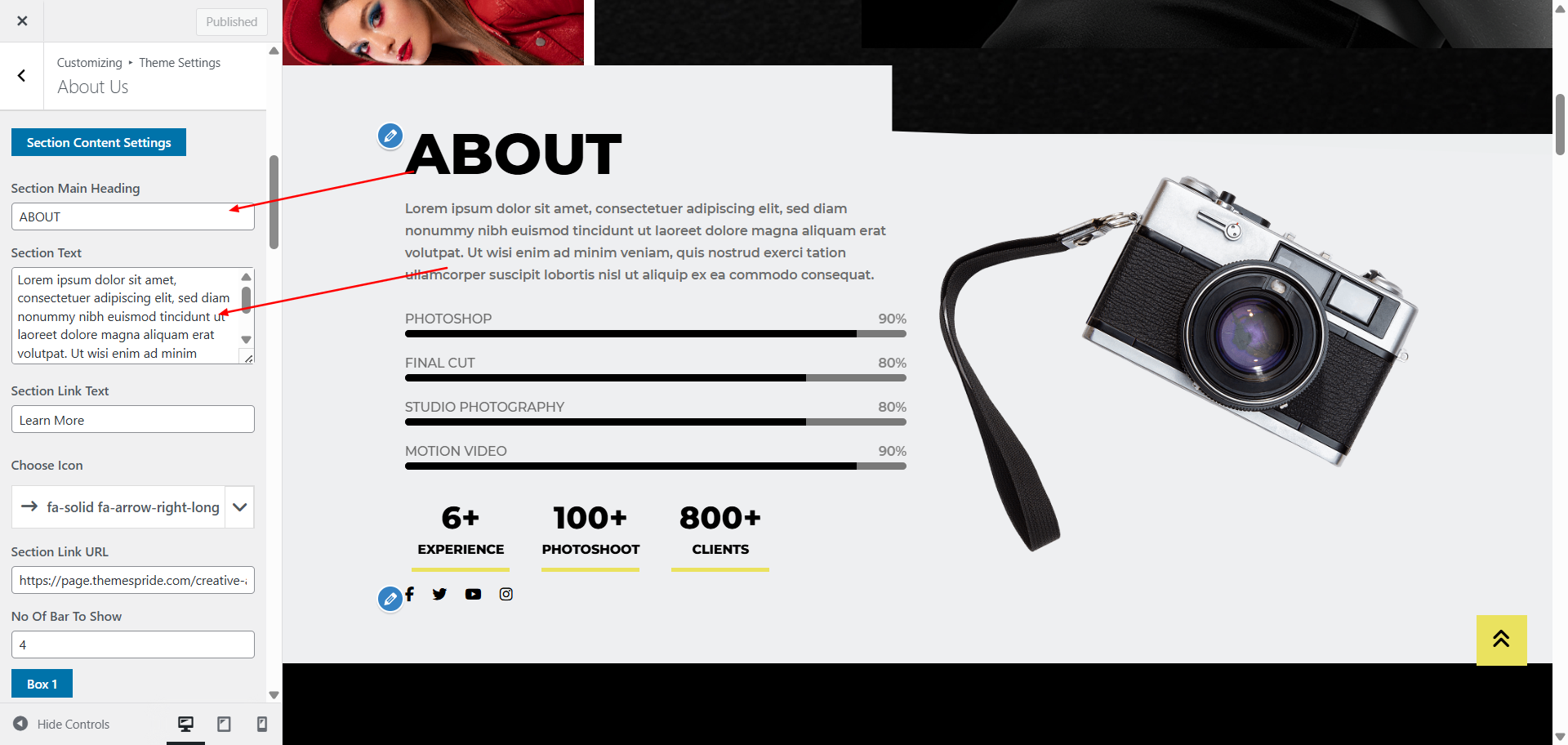
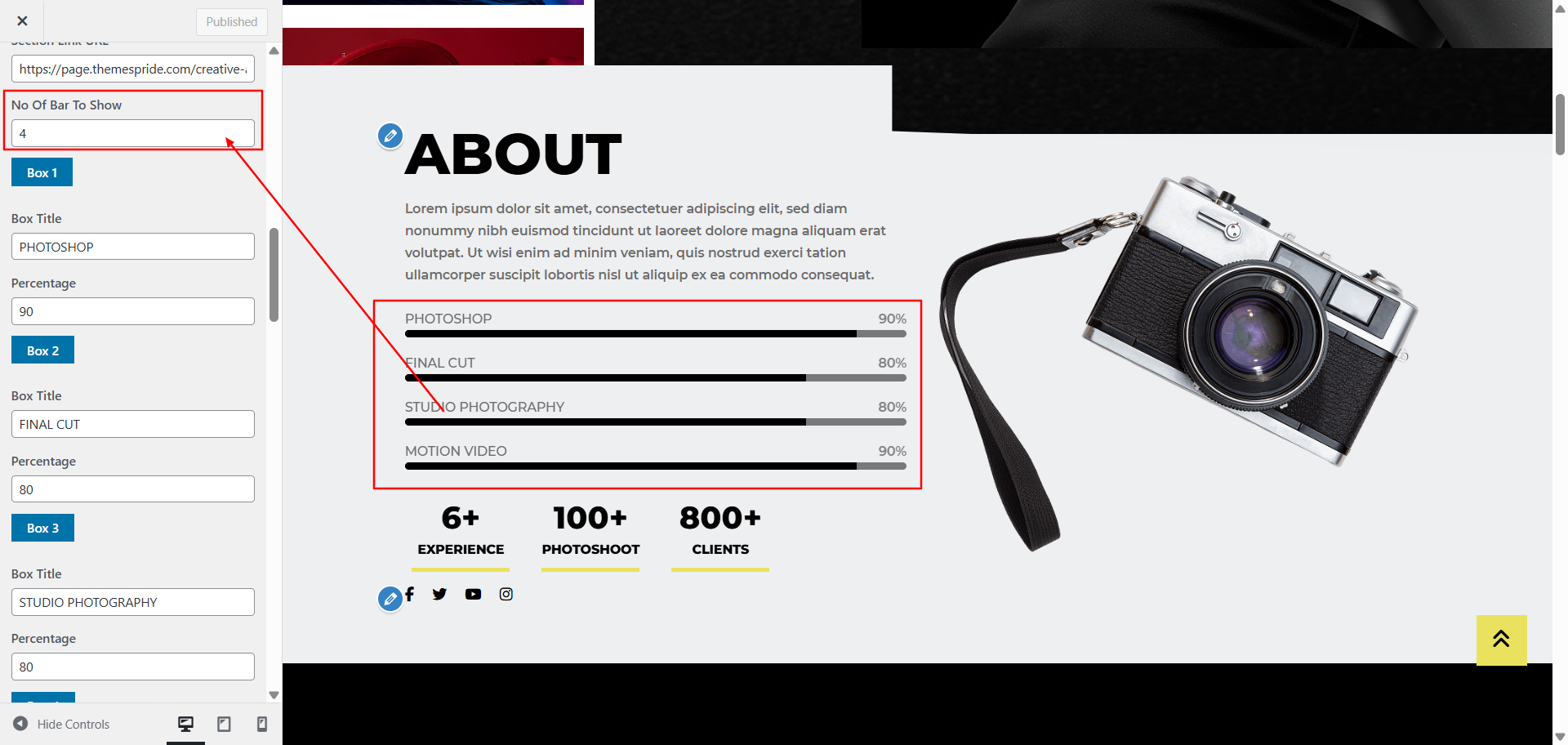
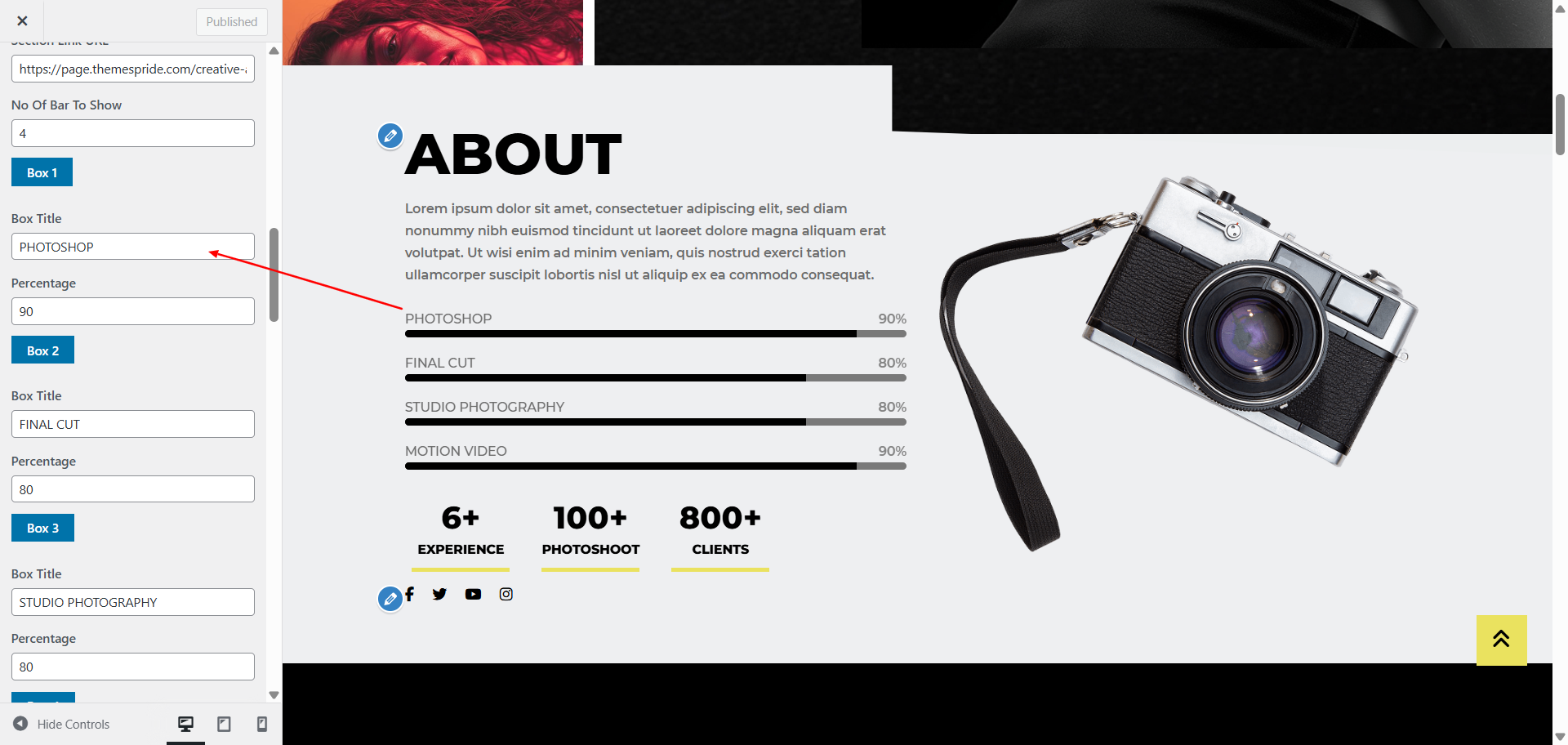
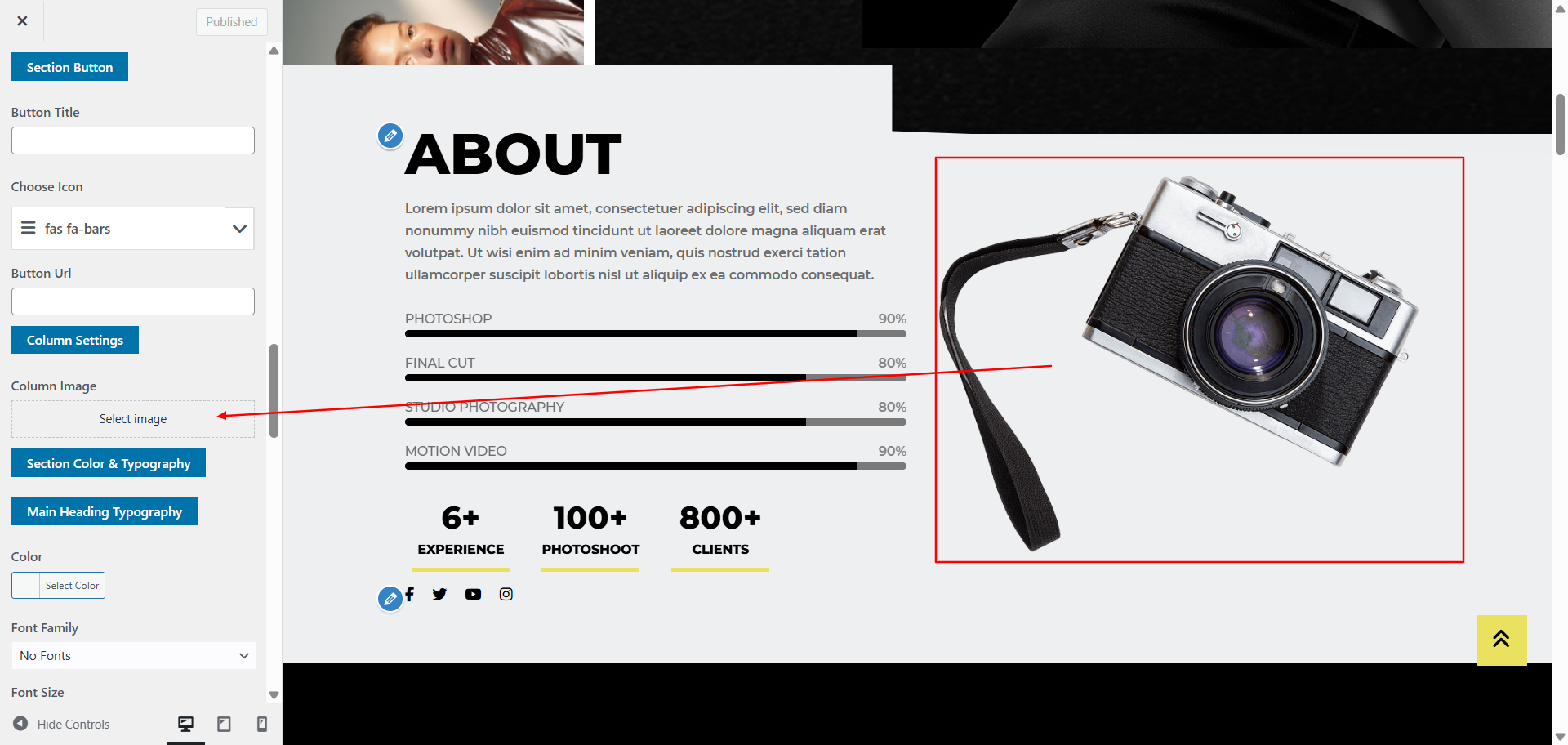
Scroll down to access all color customization options for this section.
Configure "Records" Section
Description: Showcase your agency's achievements and records in this section.
Open "Records" from the Theme Settings panel in the Customizer.
Update the content as specified below.
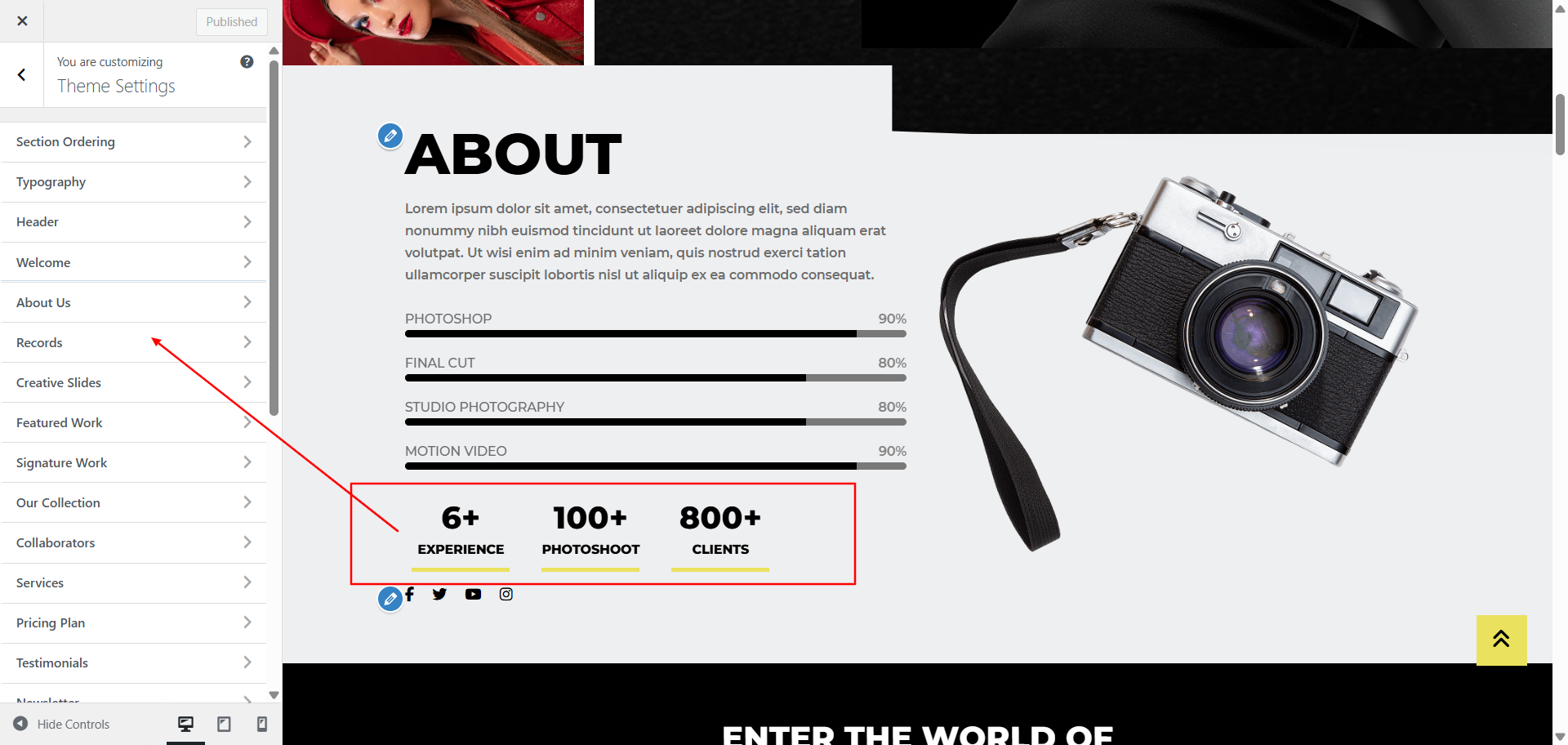
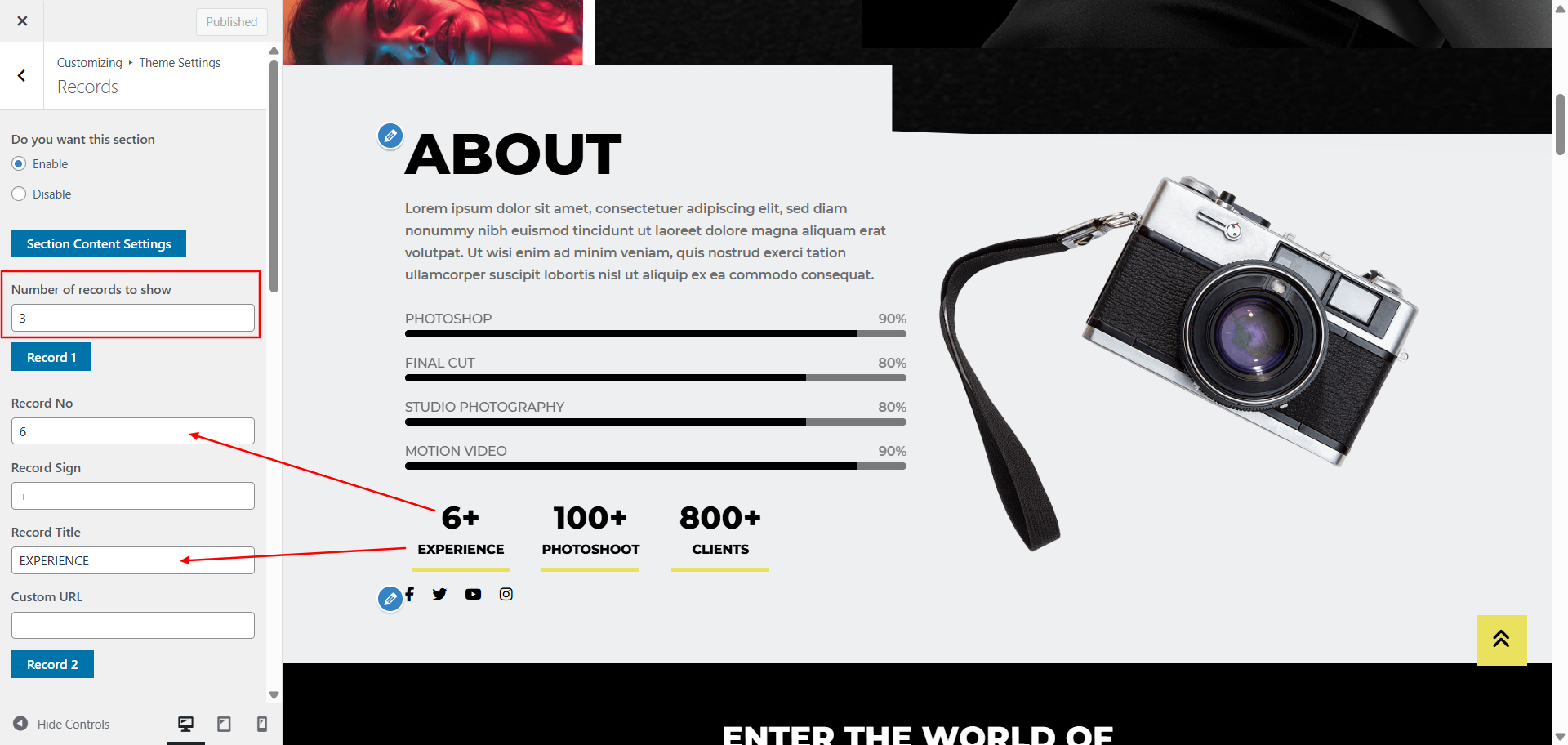
Scroll down to see all the color customization options for this section.
Configure "Creative Slides" Section
Description: Display creative slides and carousel images to highlight your work.
Open "Creative Slides" from the Theme Settings panel in the Customizer.
Update the content as specified below and upload images for the carousel.
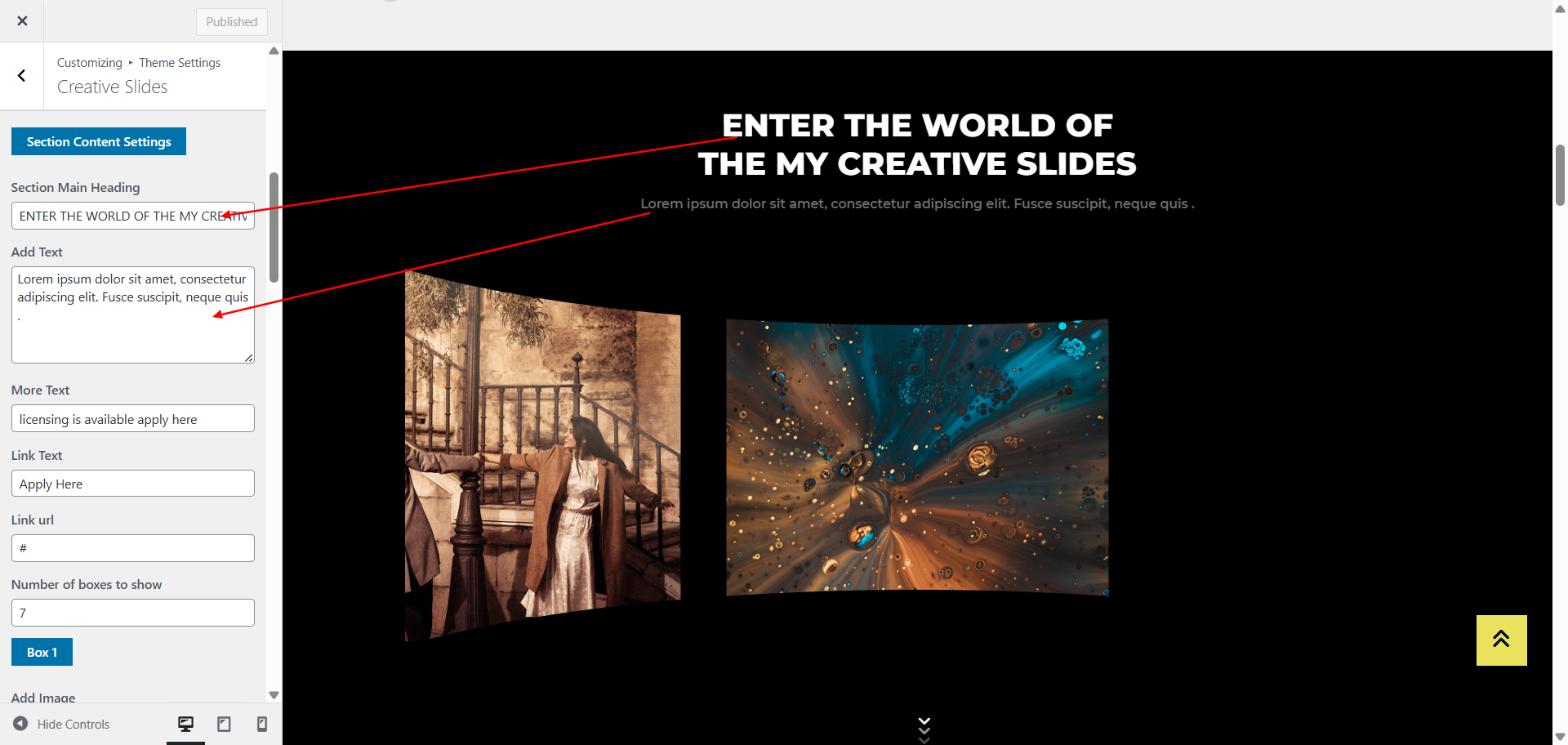
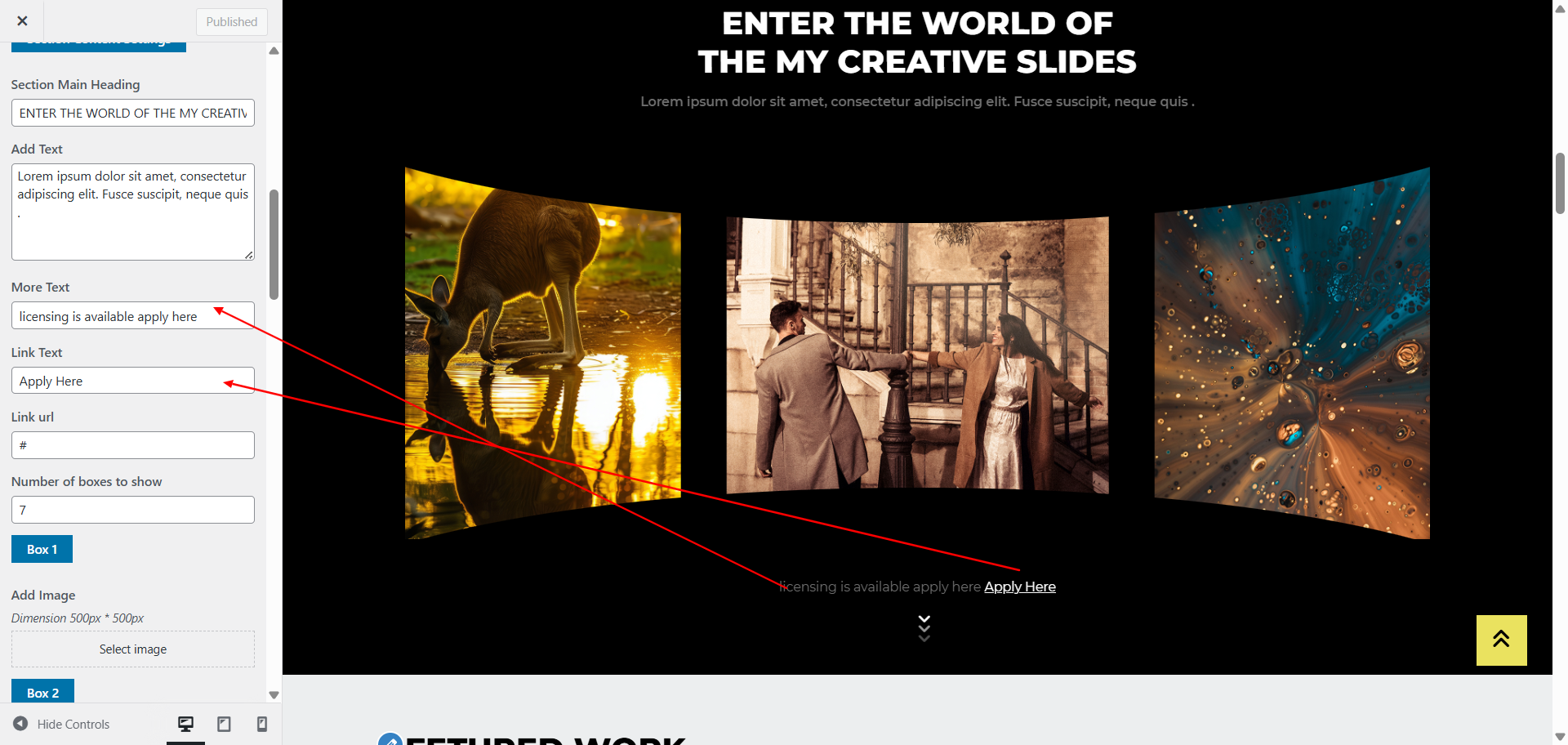
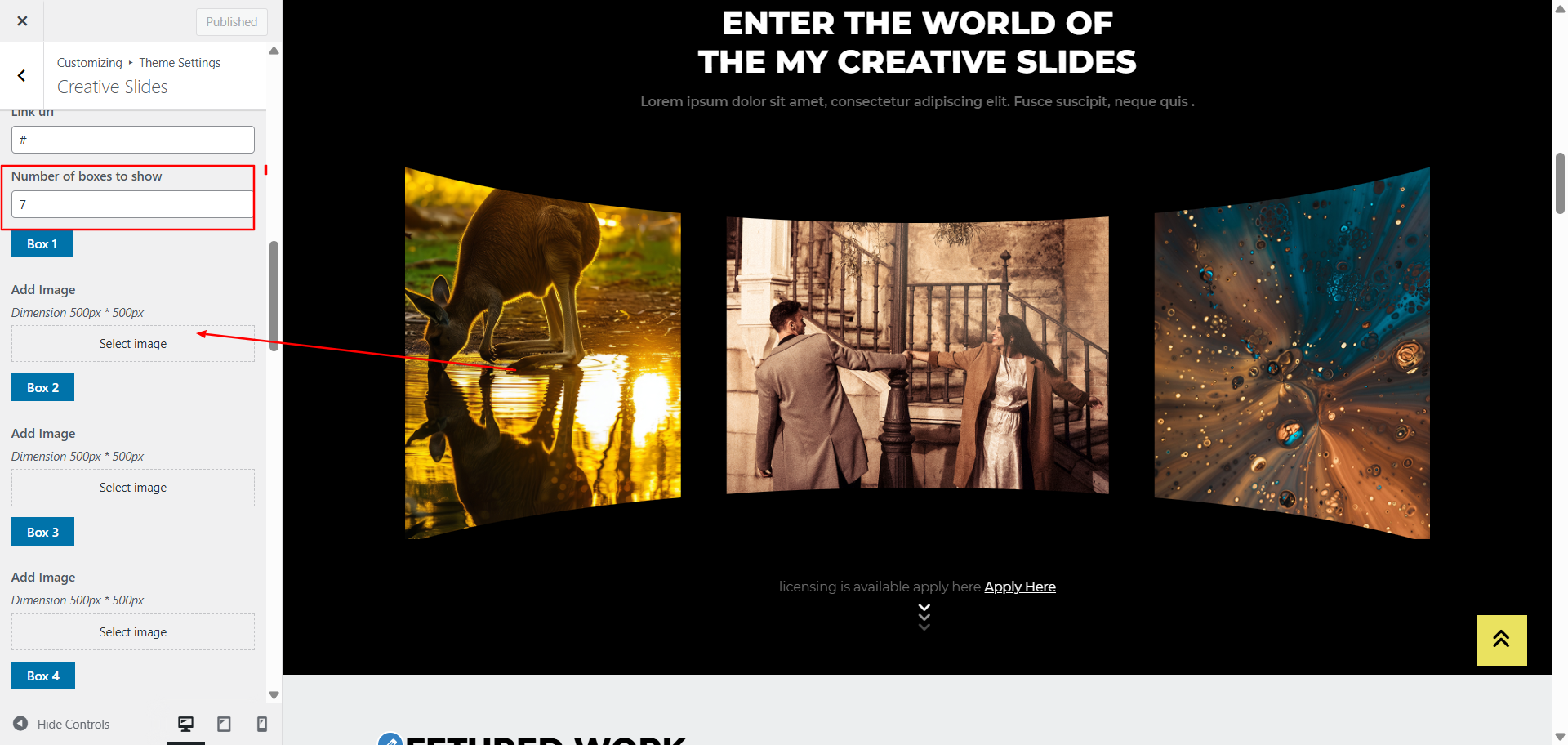
Scroll down to see all the color customization options for this section.
Configure "Projects" Section
Description: Feature your best projects with customizable backgrounds and content.
Open "Projects" from the Theme Settings panel in the Customizer.
Update background visuals using "Background Color" and "Background Images".
Adjust the number of Projects to show, and fill in each box with your content.
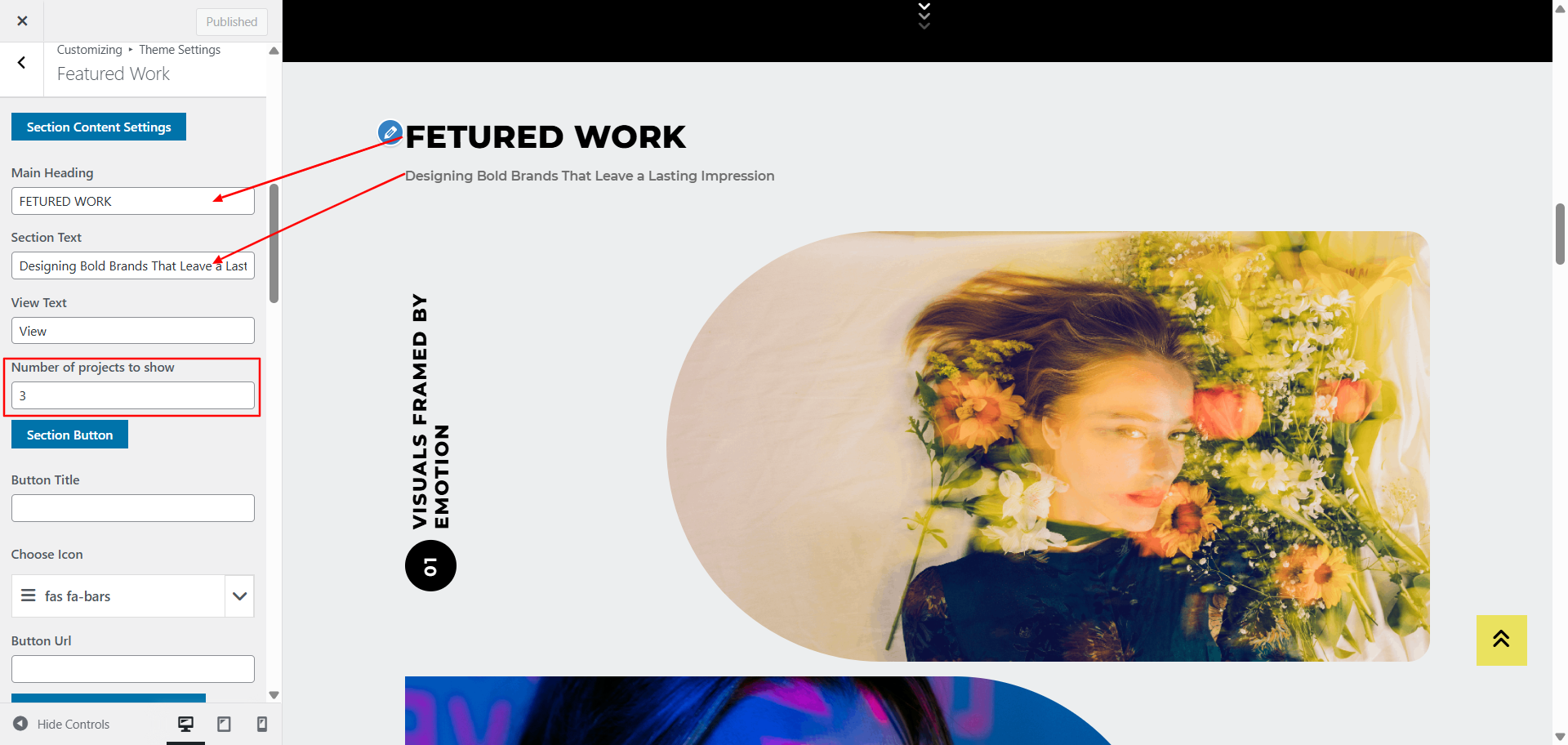
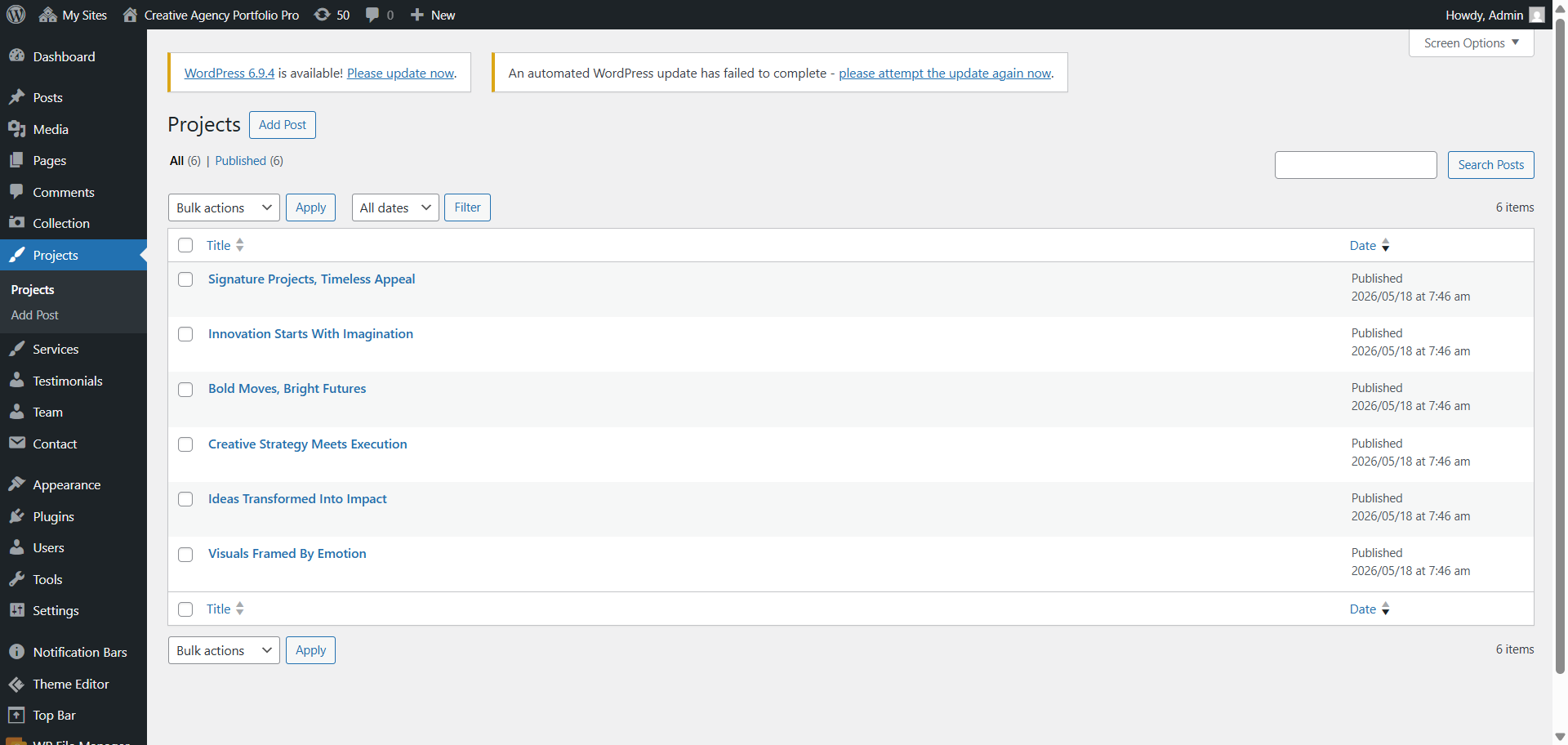
Go to Dashboard → Projects to view demo Projects.
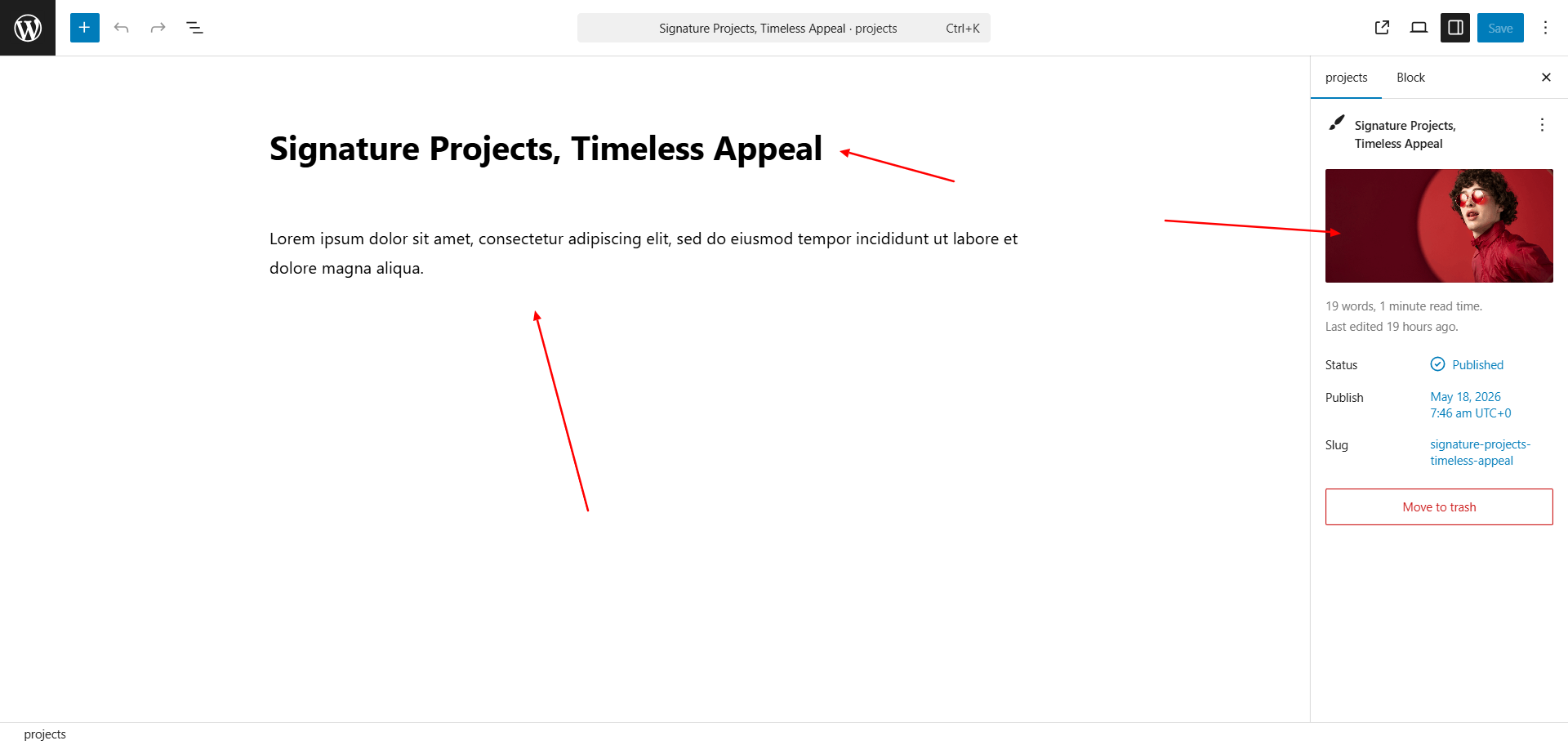
Scroll down to see all the color customization options for this section.
Configure "Signature Work" Section
Description: Highlight your signature work with individual settings for each item.
Open "Signature Work" from the Theme Settings panel in the Customizer.
Update the content as specified below. Each box have indivisual settings.
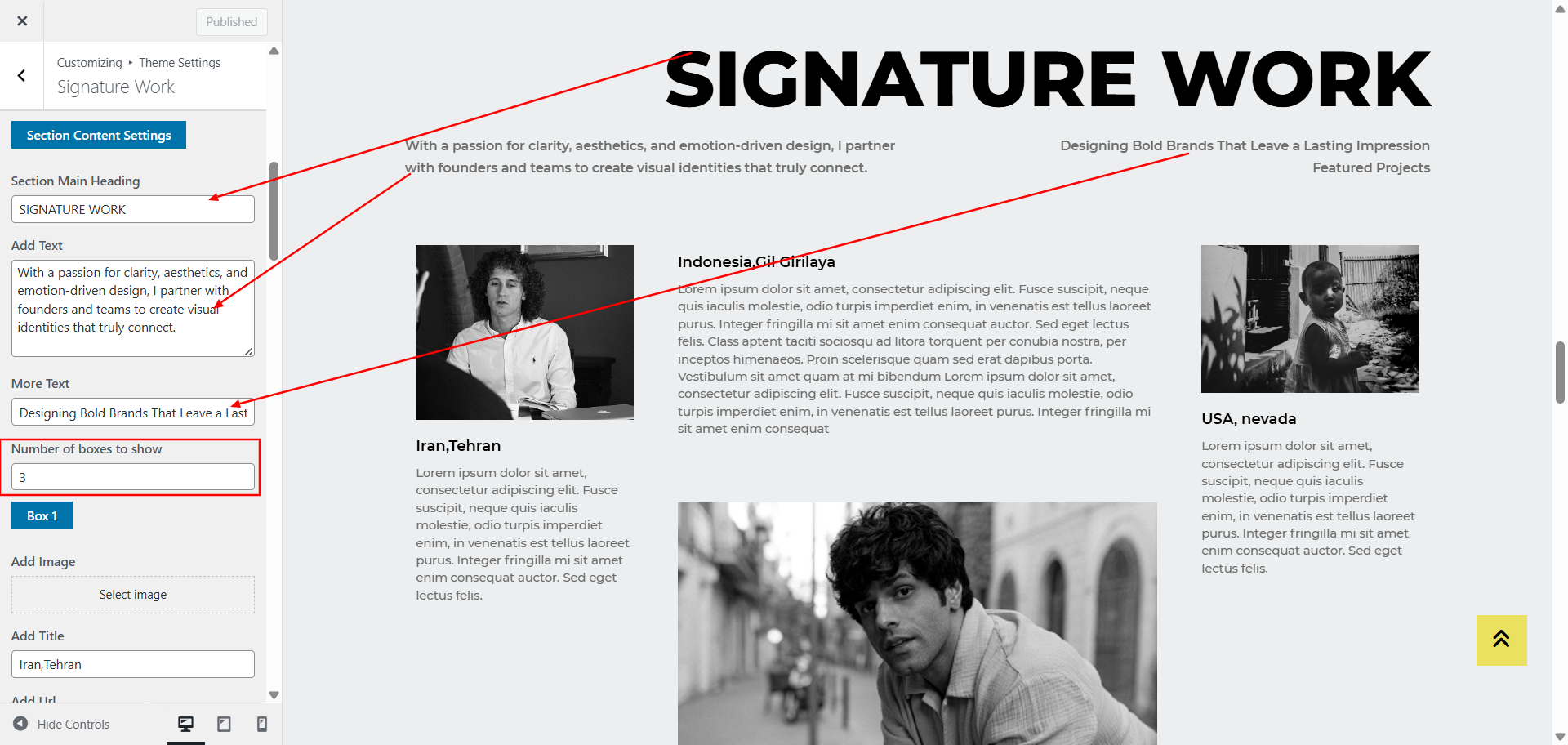
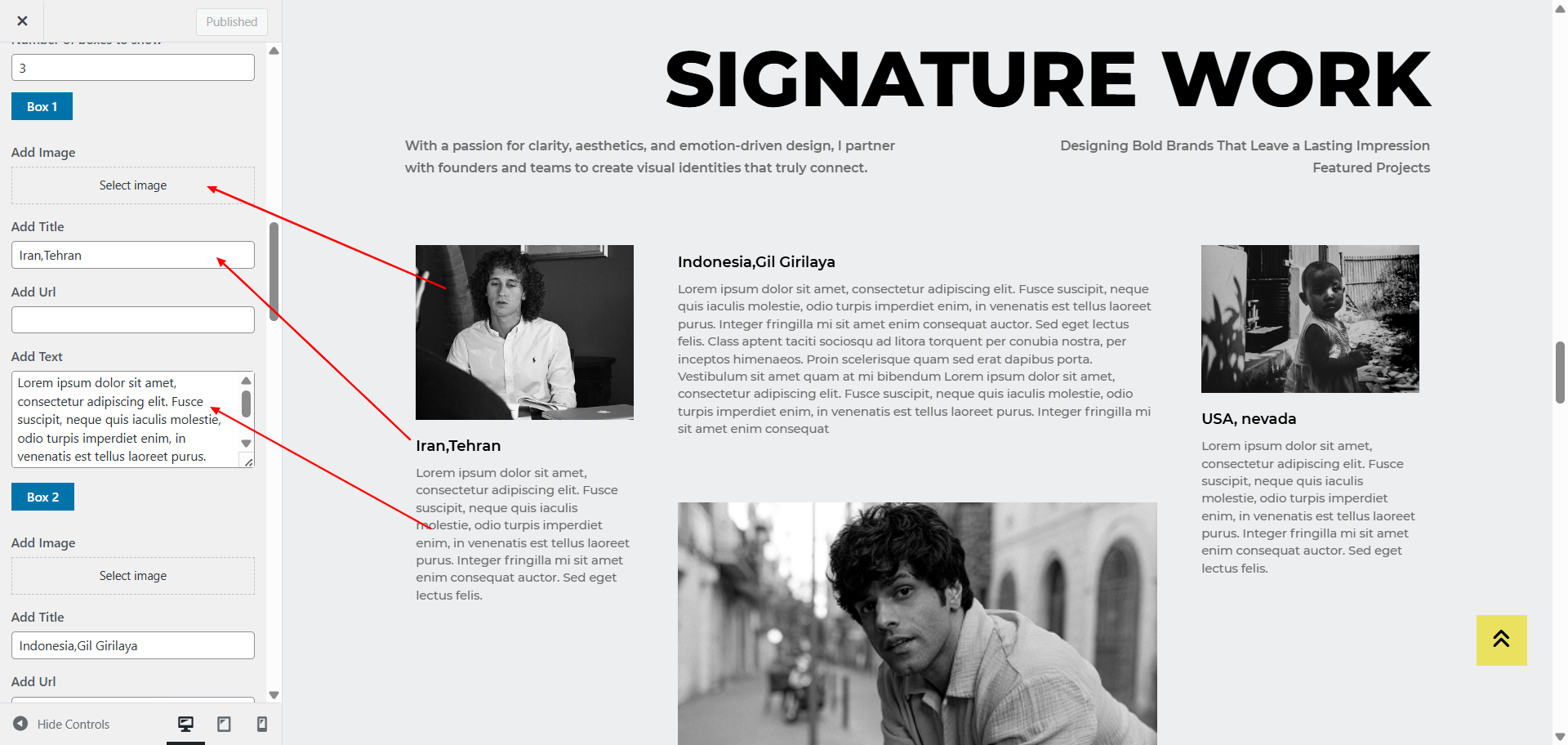
Scroll down to see all the color customization options for this section.
Configure "Collections" Section
Description: Present curated collections with background and content options.
Open "Collections" from the Theme Settings panel in the Customizer.
Update background visuals using "Background Color" and "Background Images".
Adjust the number of collections to show, and fill in each box with your content.
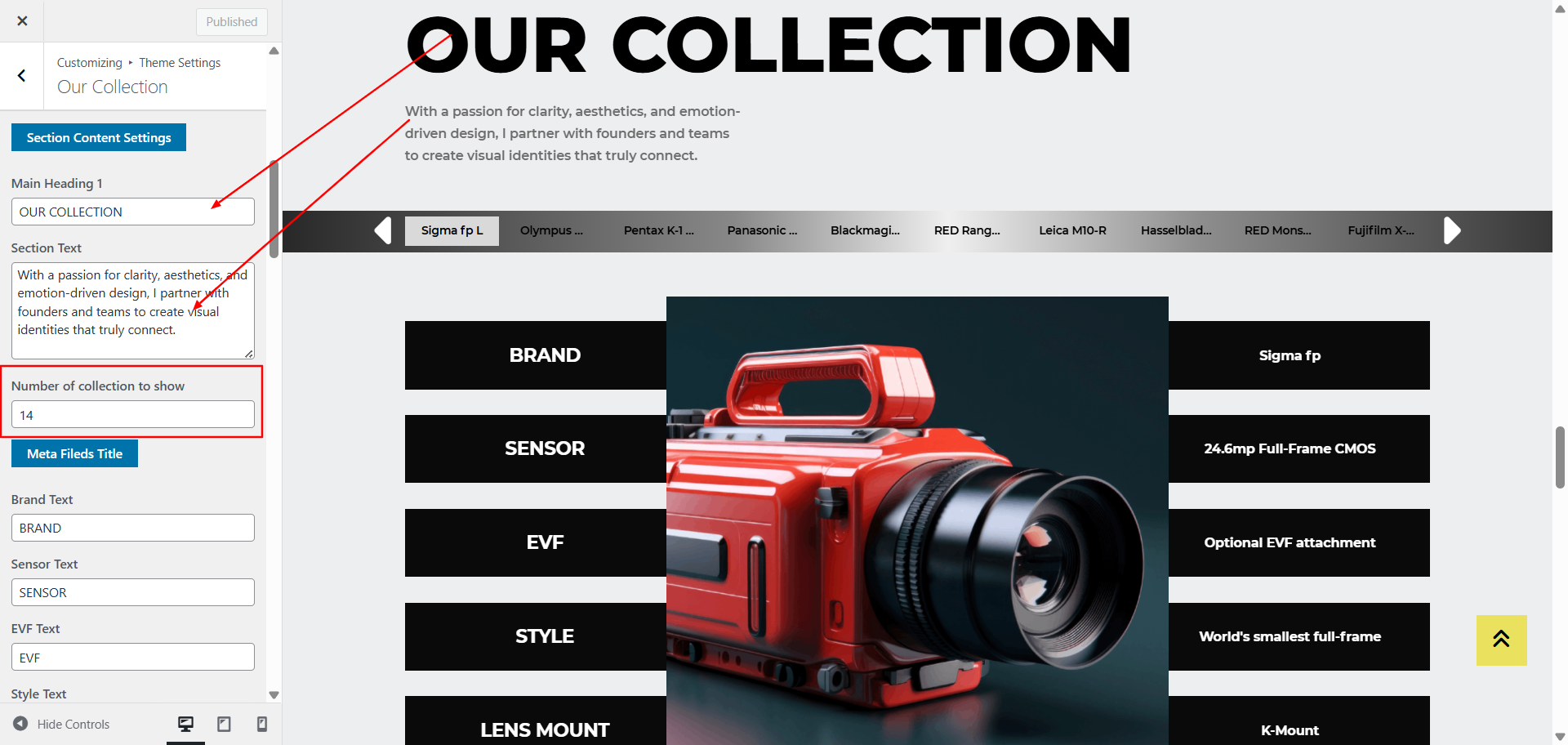
Go to Dashboard → Collections to view demo collections.
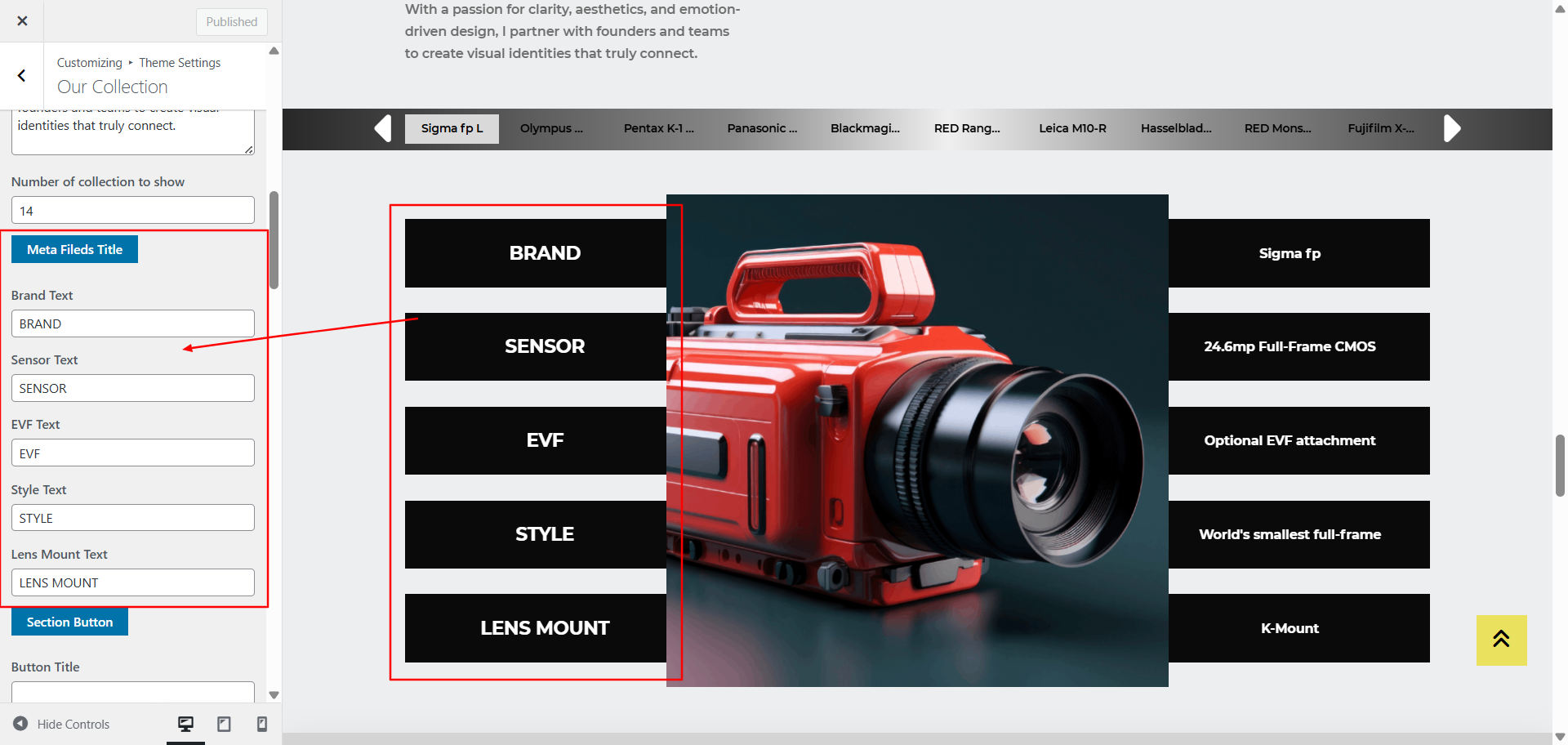
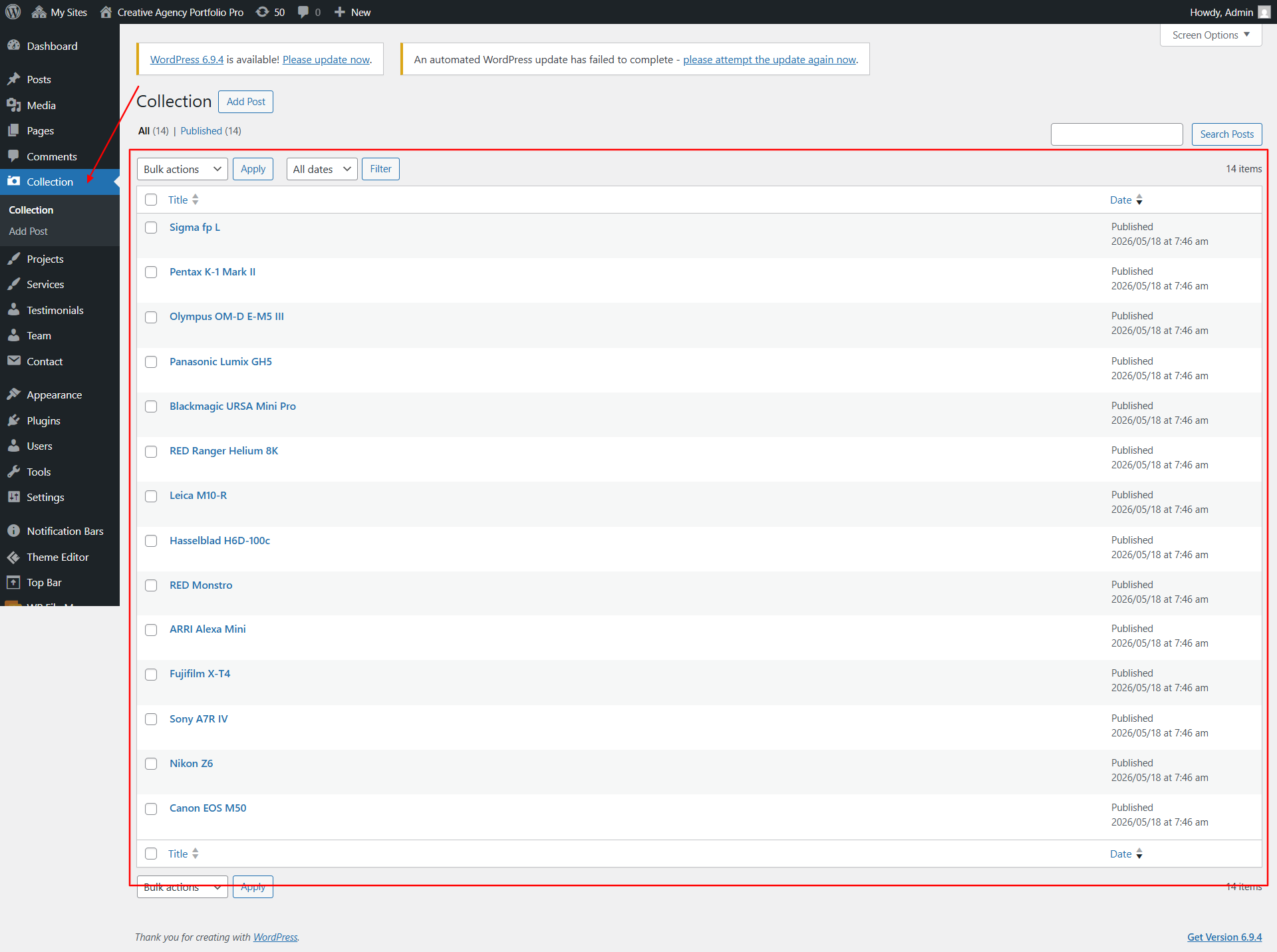
Scroll down to see all the color customization options for this section.
Configure "Collaborators" Section
Description: Introduce your team or collaborators with images and bios.
Open "Collaborators" from the Theme Settings panel in the Customizer.
Update background visuals using "Background Color" and "Background Images".
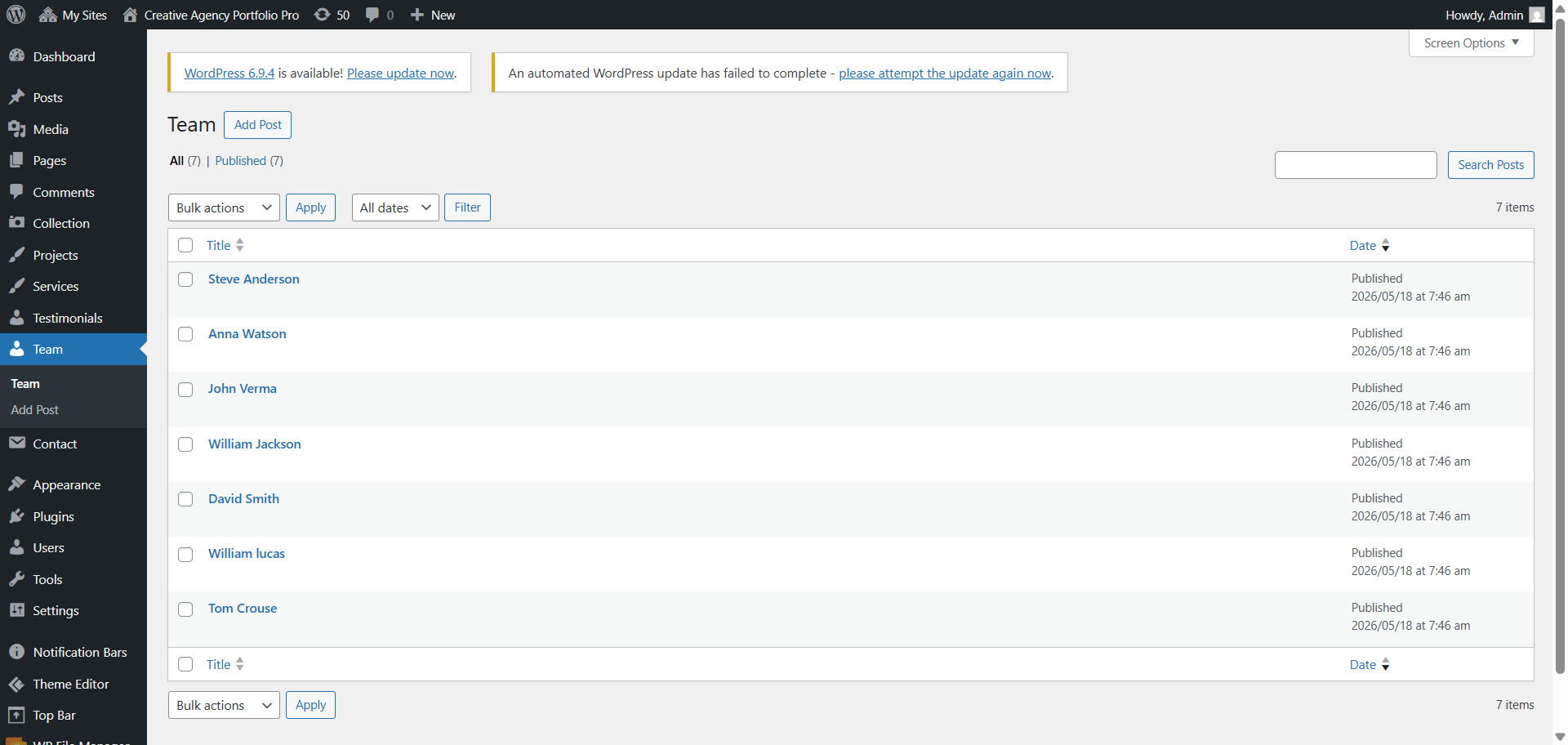
Adjust the number of team to show, and fill in each box with your content.
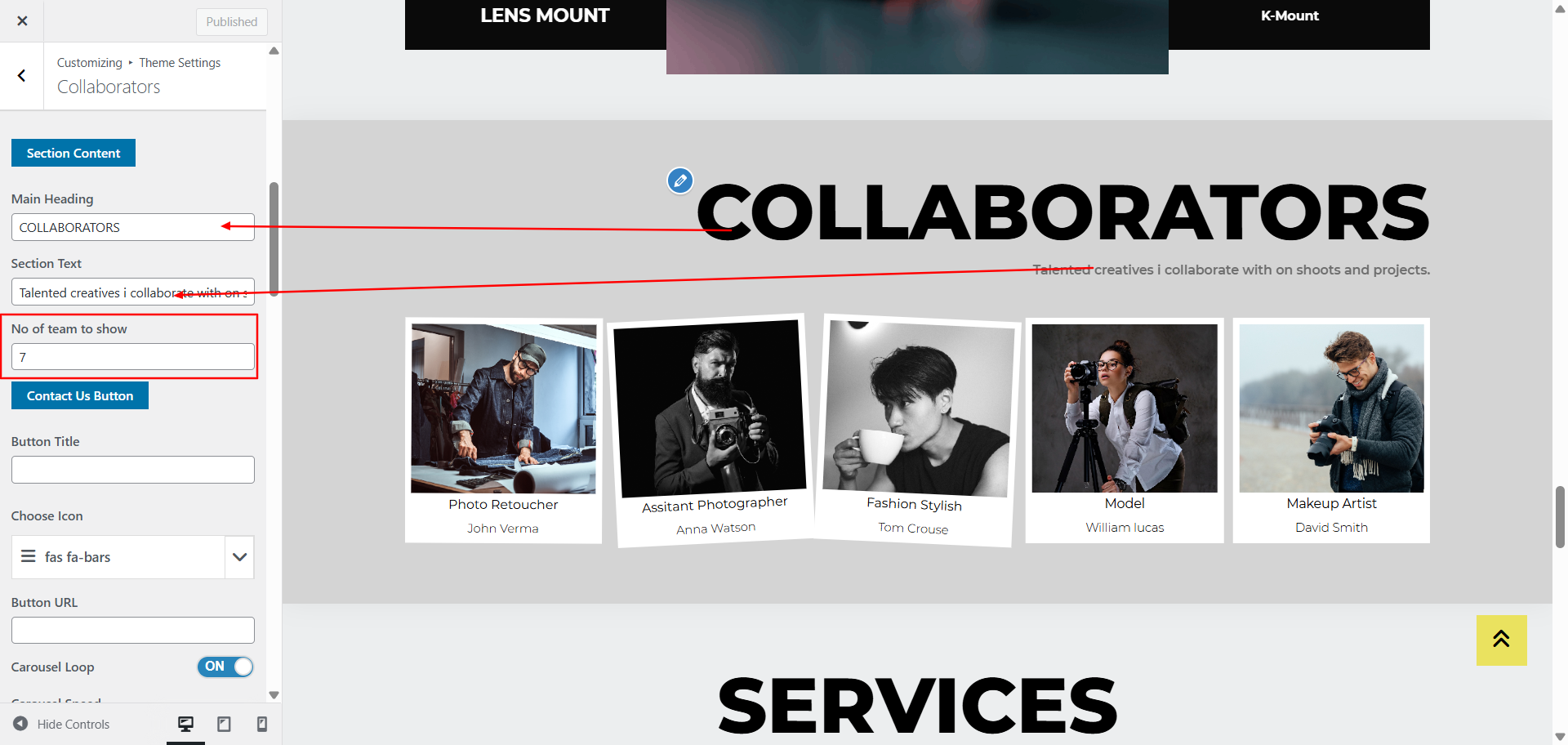
Go to Dashboard → Team to view demo team.
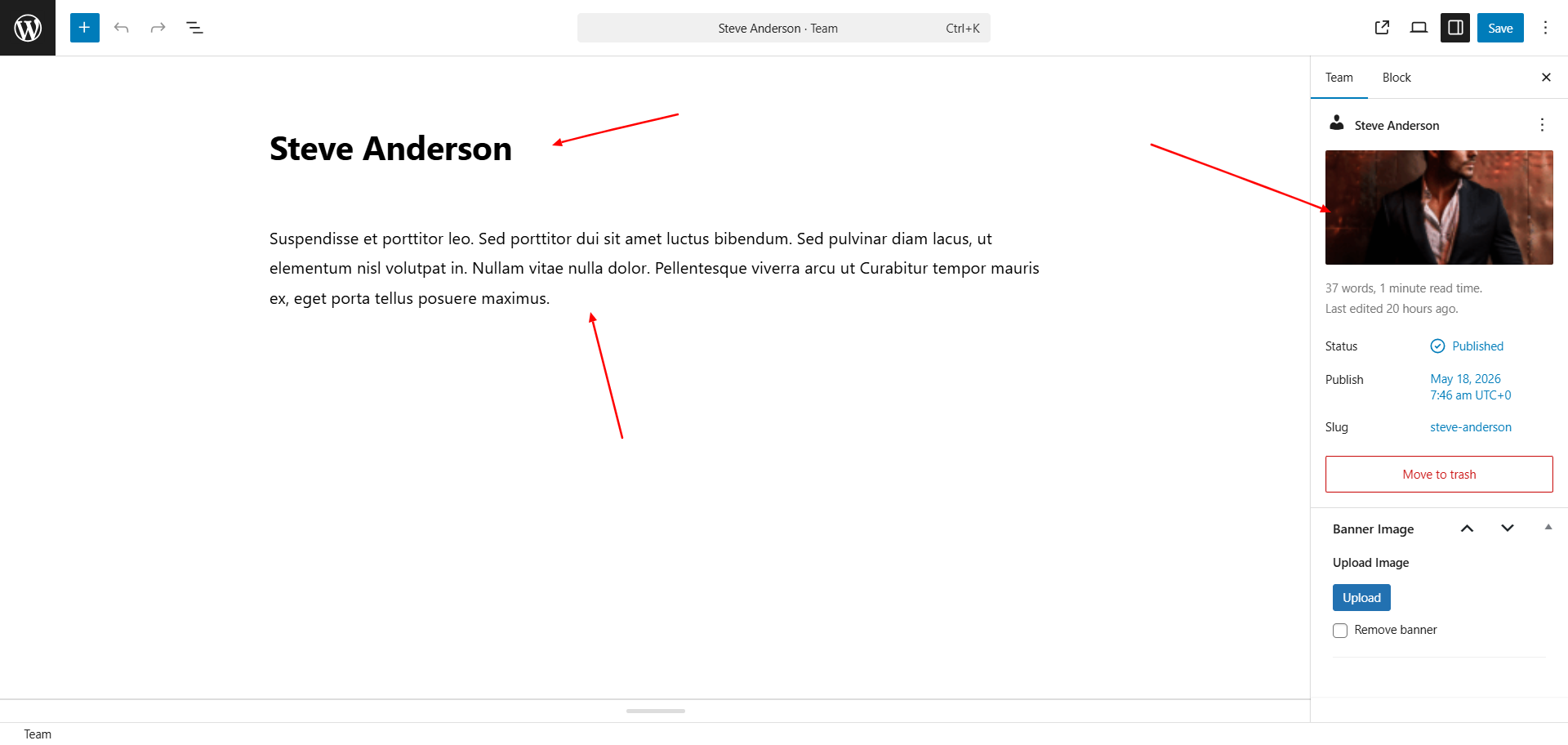
Scroll down to see all the color customization options for this section.
Configure "Services" Section
Description: List the services your agency offers, with customizable backgrounds and details.
Open "Services" from the Theme Settings panel in the Customizer.
Update background visuals using "Background Color" and "Background Images".
Adjust the number of services to show, and fill in each box with your content.
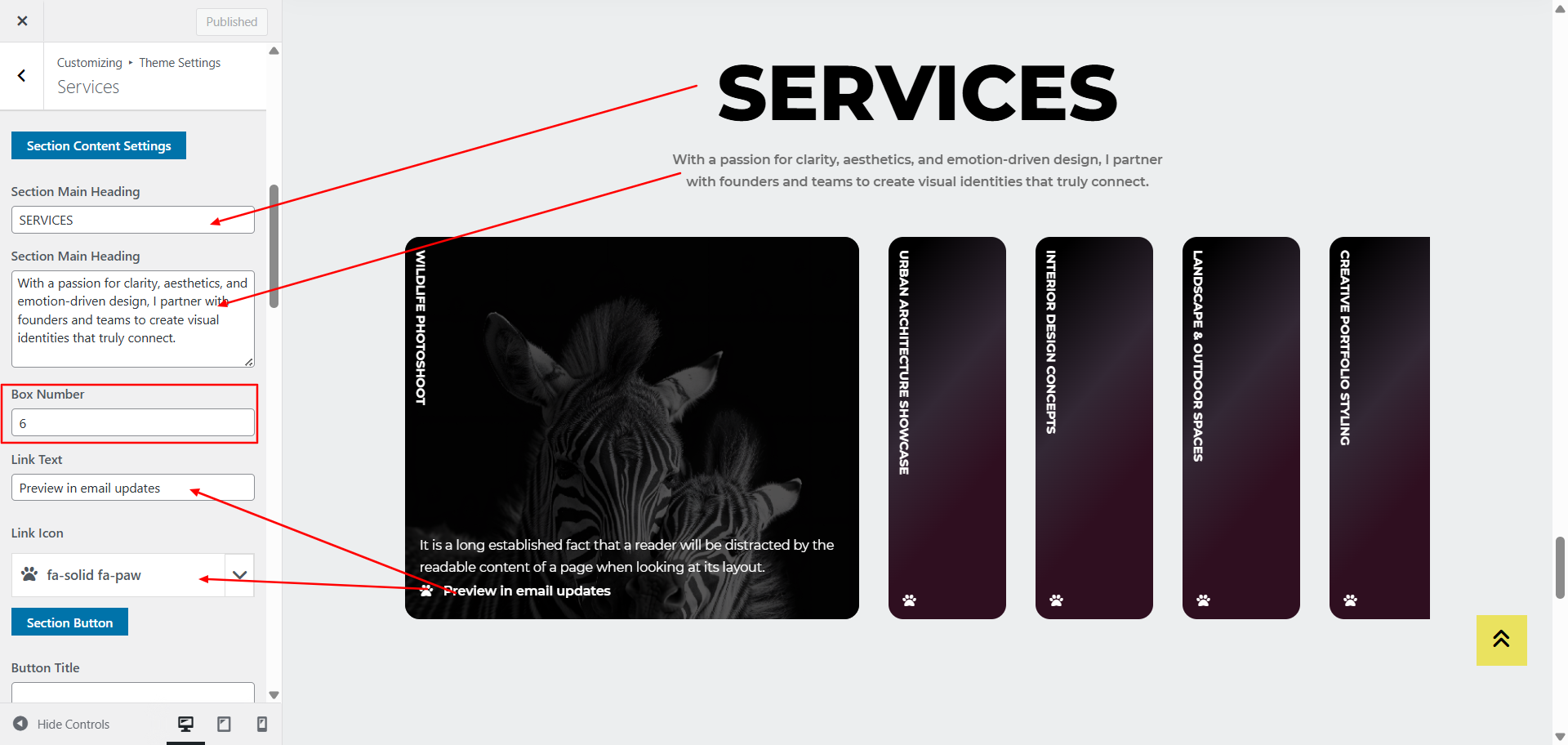
Go to Dashboard → services to view demo services.
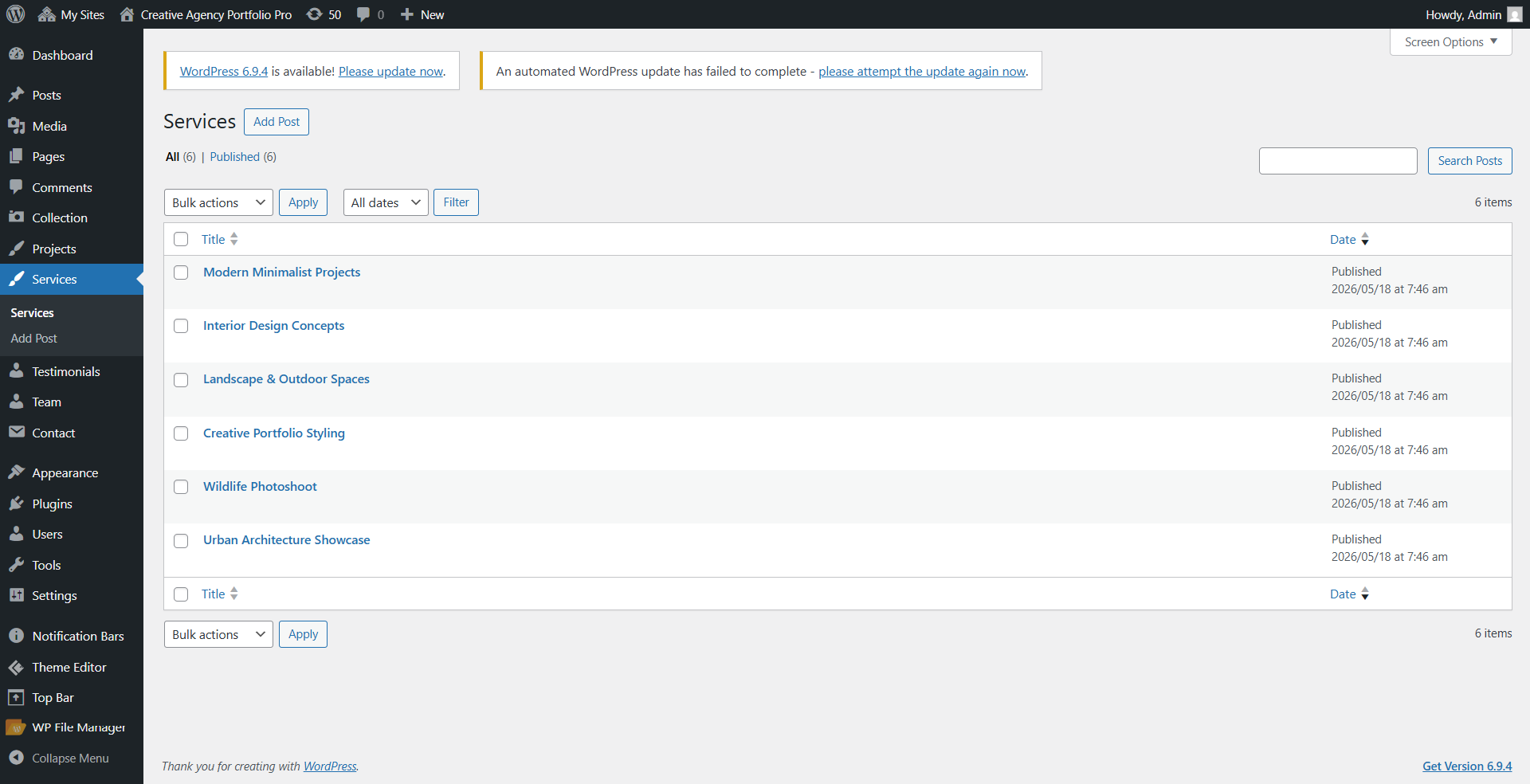
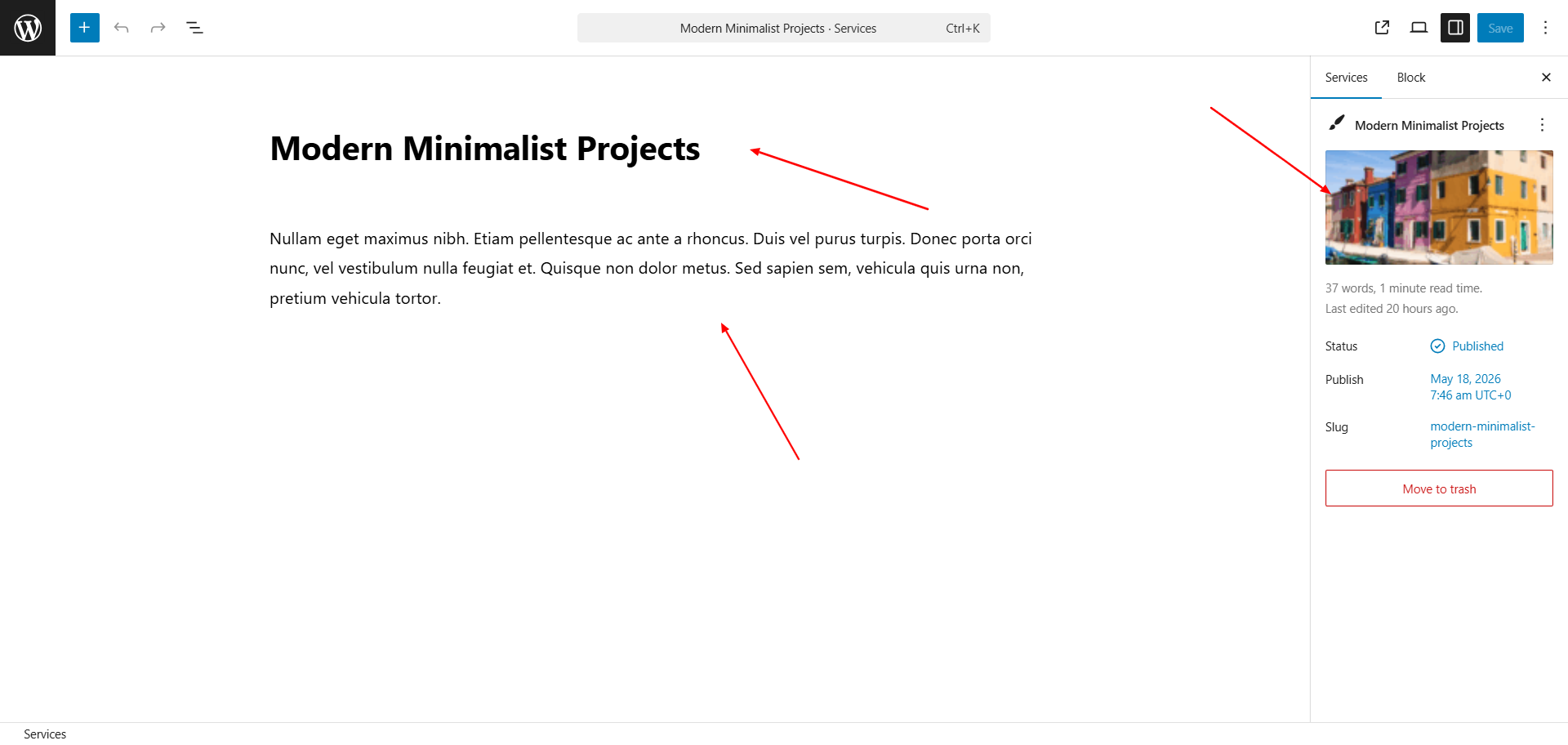
Scroll down to see all the color customization options for this section.
Configure "Pricing Plan" Section
Description: Display your pricing plans and packages for potential clients.
Open "Pricing Plan" from the Theme Settings panel in the Customizer.
Update background visuals using "Background Color" and
Update the content as specified below.
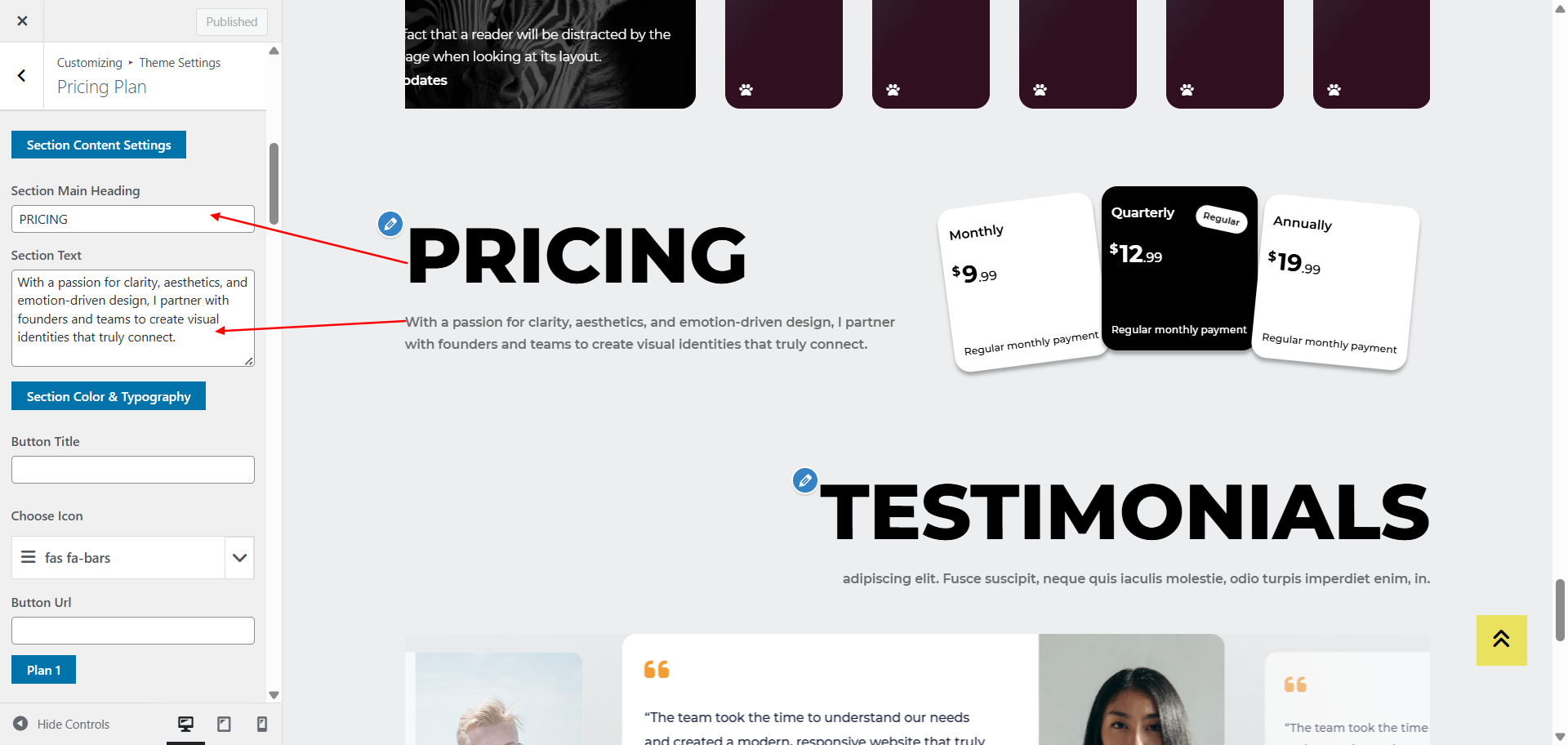
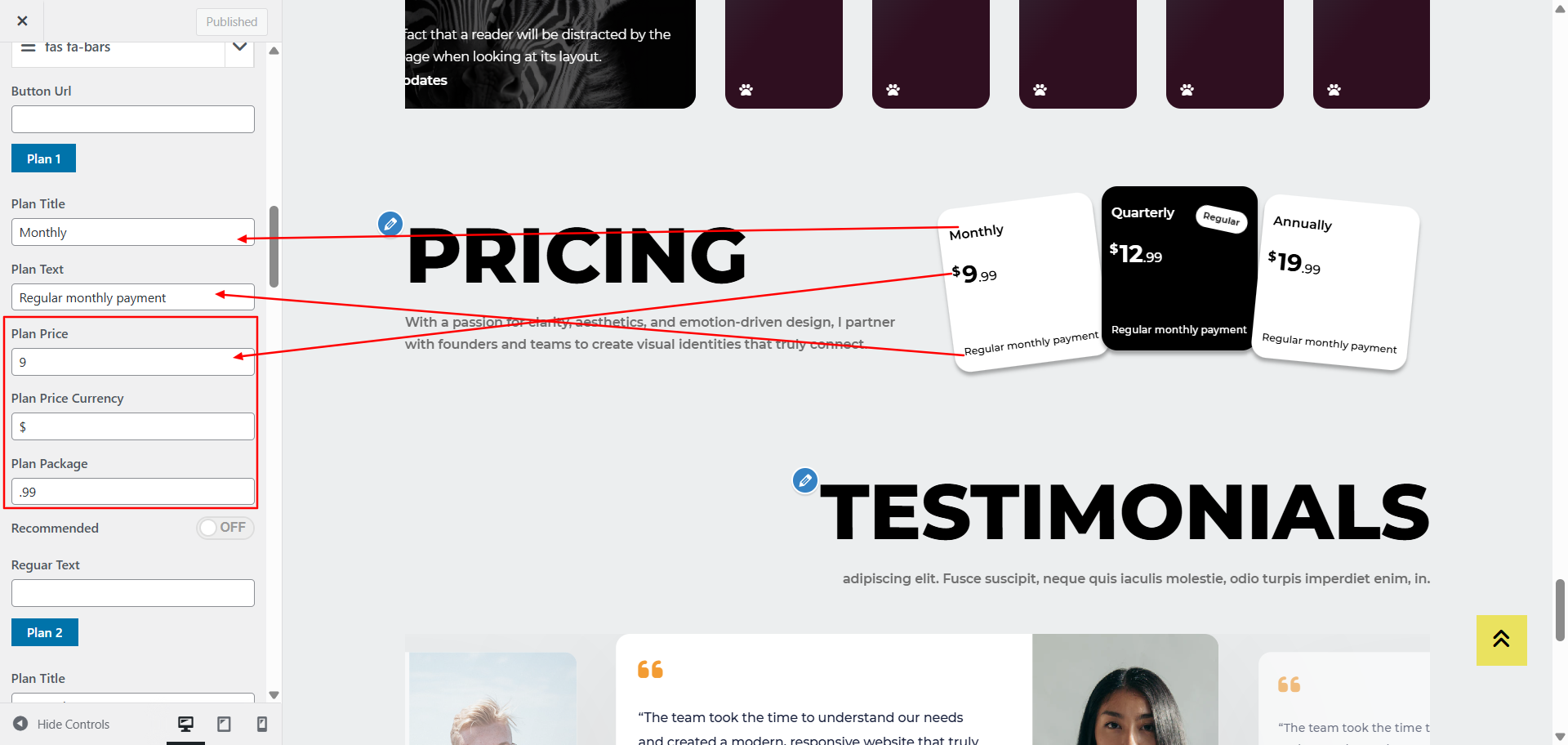
Scroll down to see all the color customization options for this section.
Configure "Testimonials" Section
Description: Share client testimonials and feedback to build trust.
Open "Testimonials" from the Theme Settings panel in the Customizer.
Update background visuals using "Background Color" and "Background Images".
Adjust the number of Testimonials to show, and fill in each box with your content.
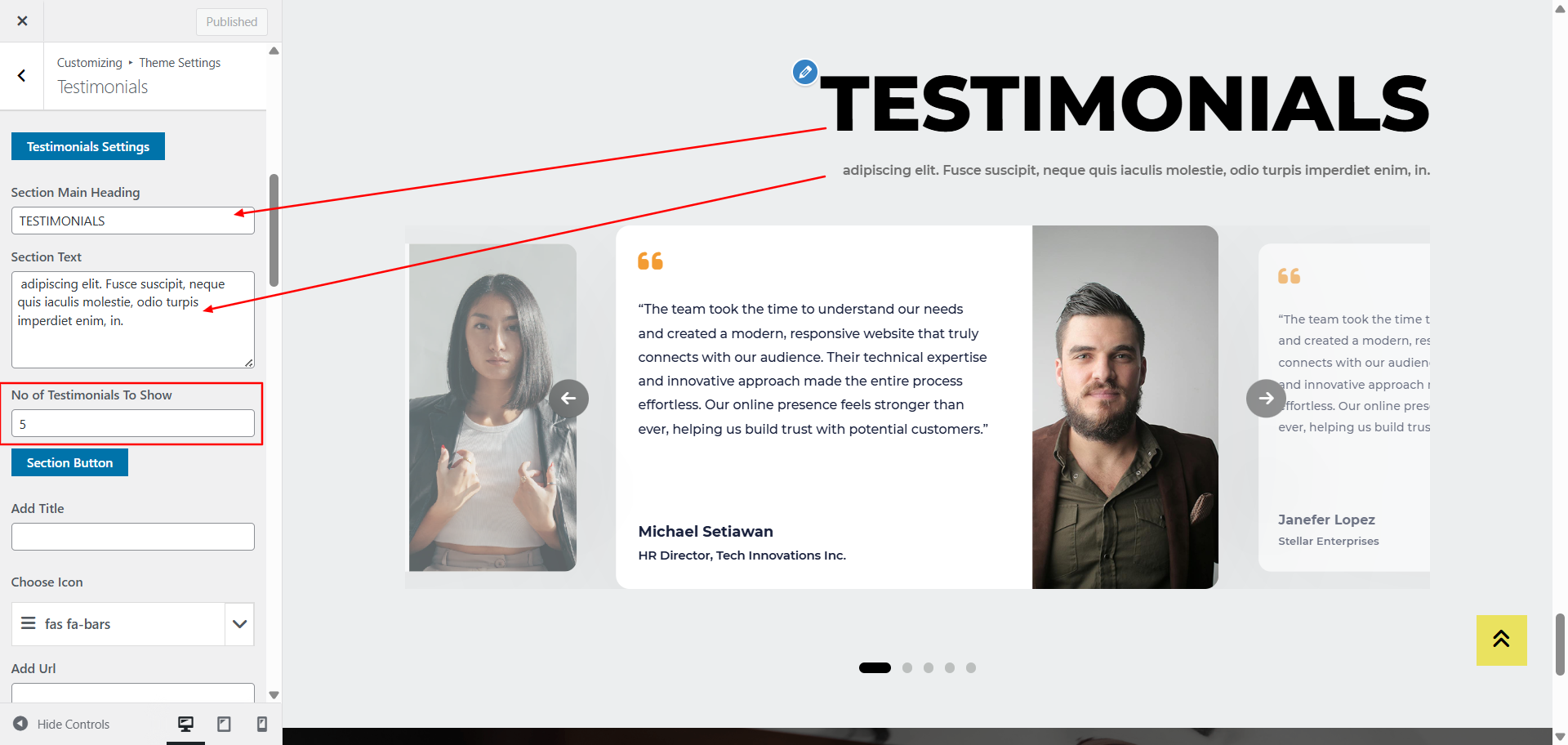
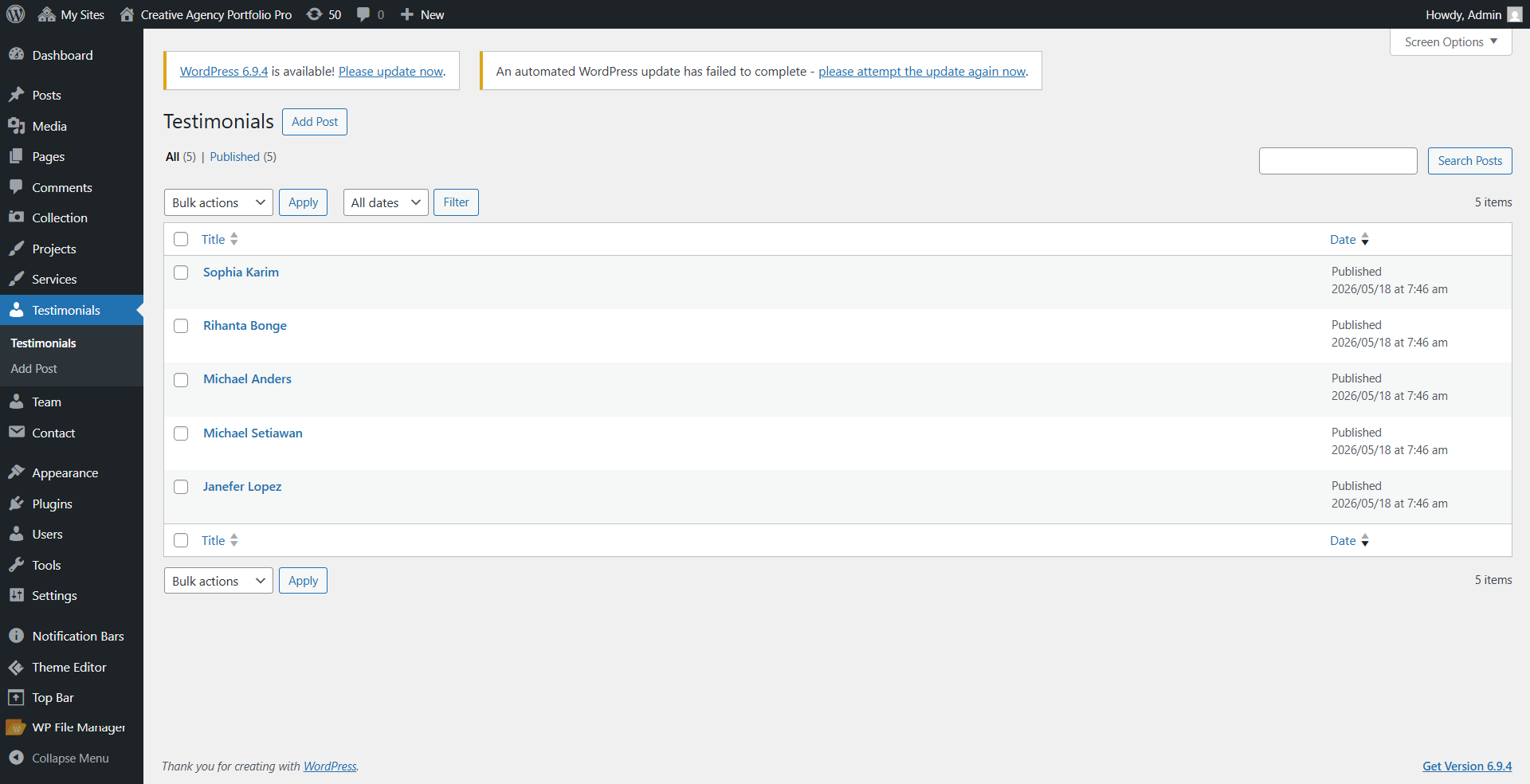
Go to Dashboard → Testimonials to view demo testimonials.
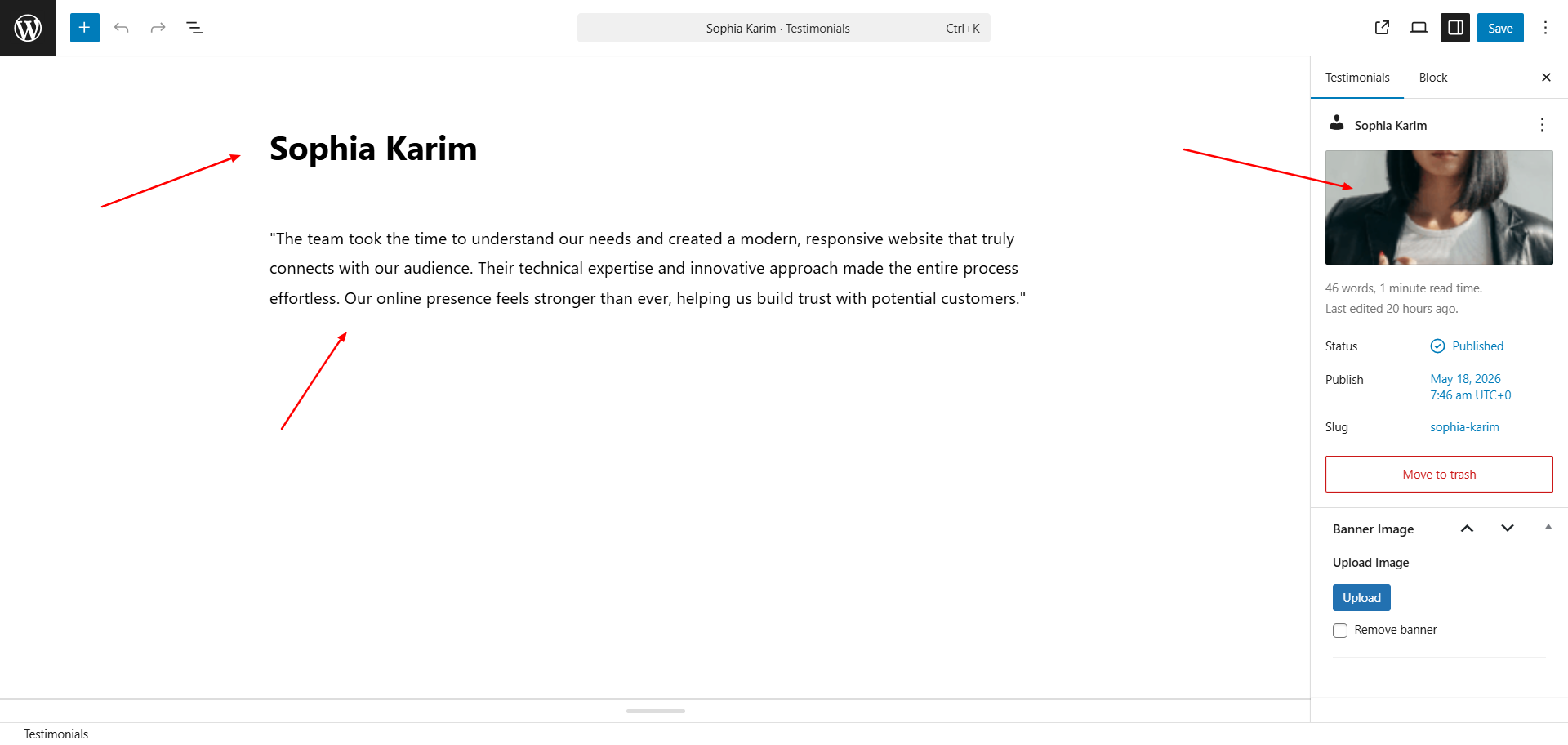
Scroll down to see all the color customization options for this section.
Configure "Newsletter"
Description: Set up a newsletter signup form to grow your audience.
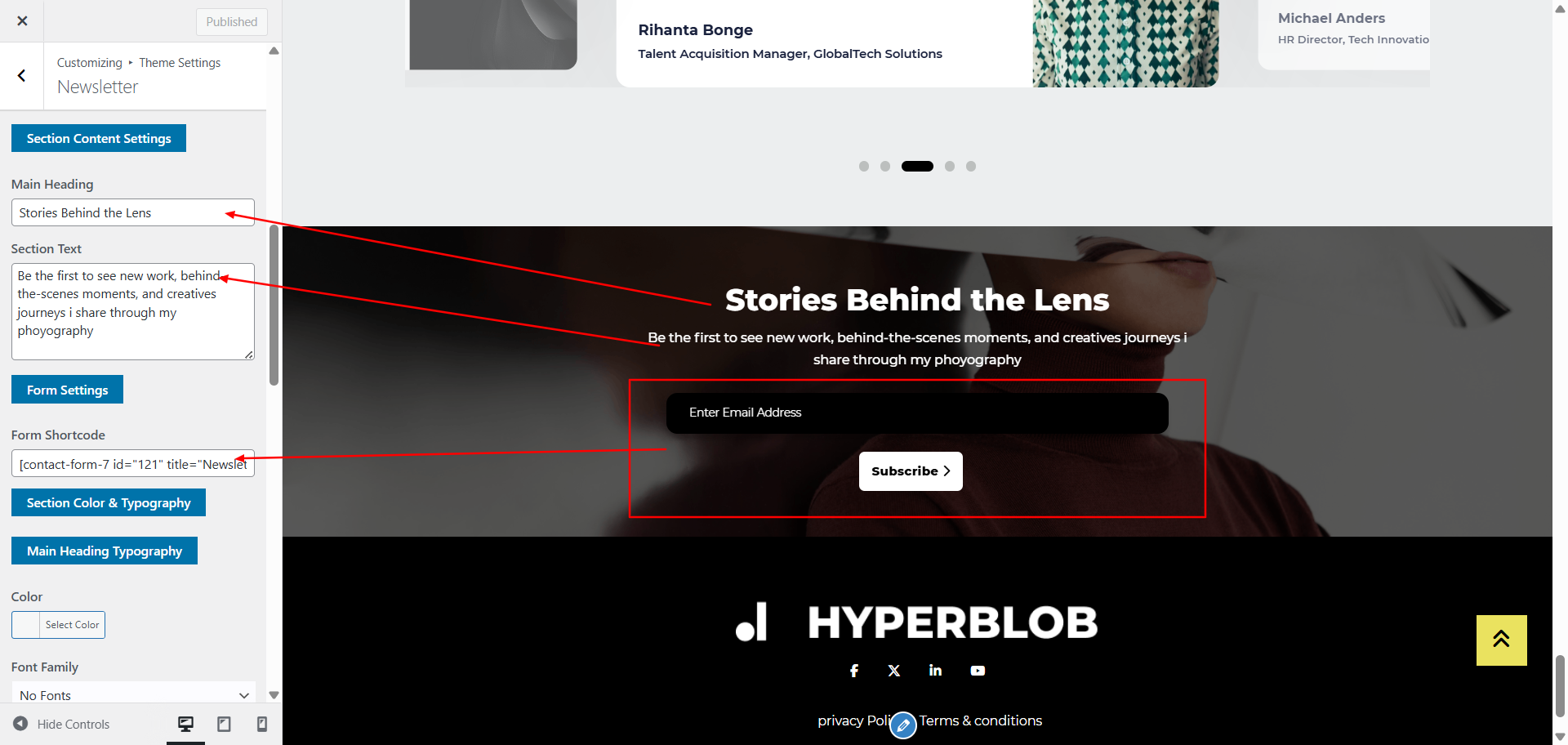
Go to Theme Settings → Newsletter in the Customizer.
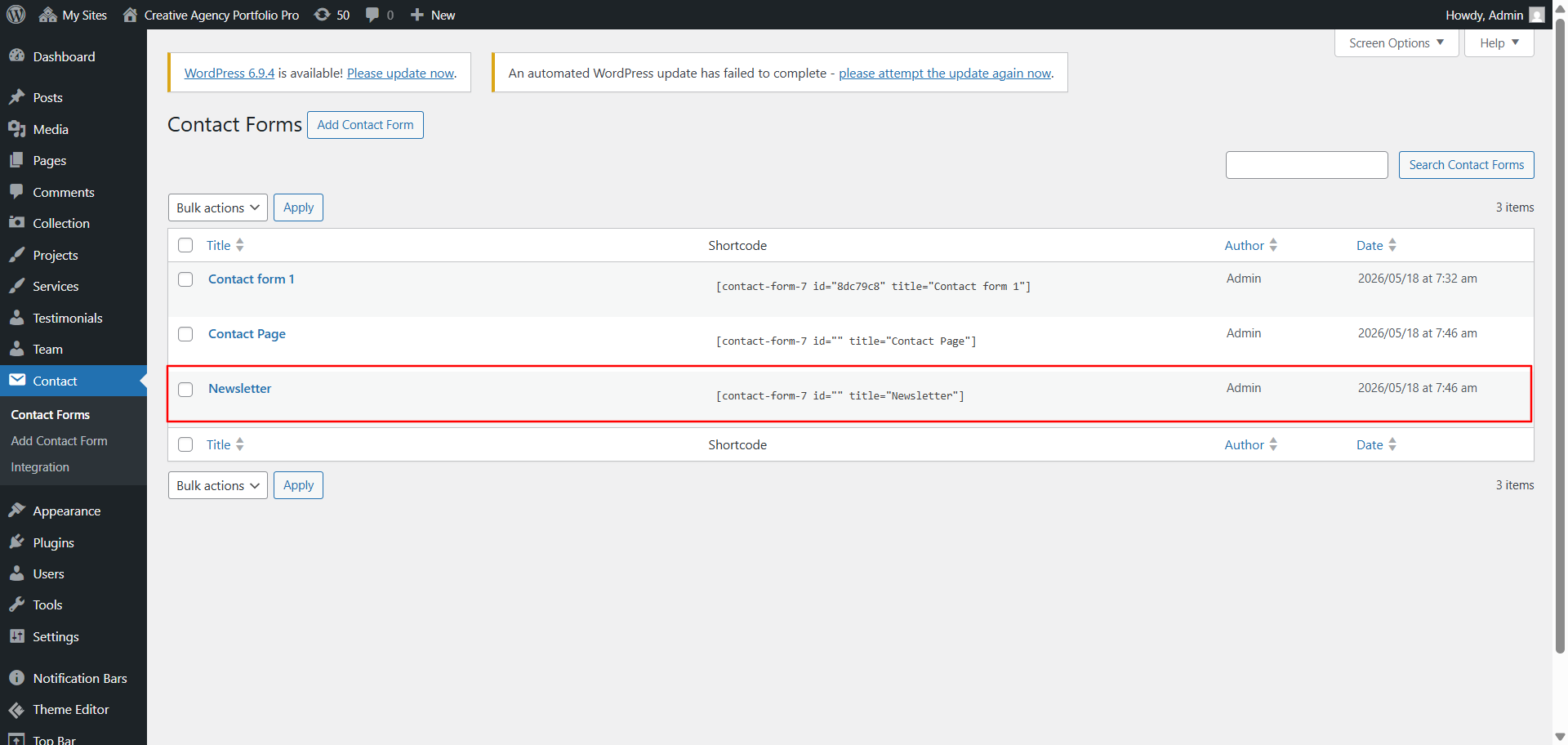
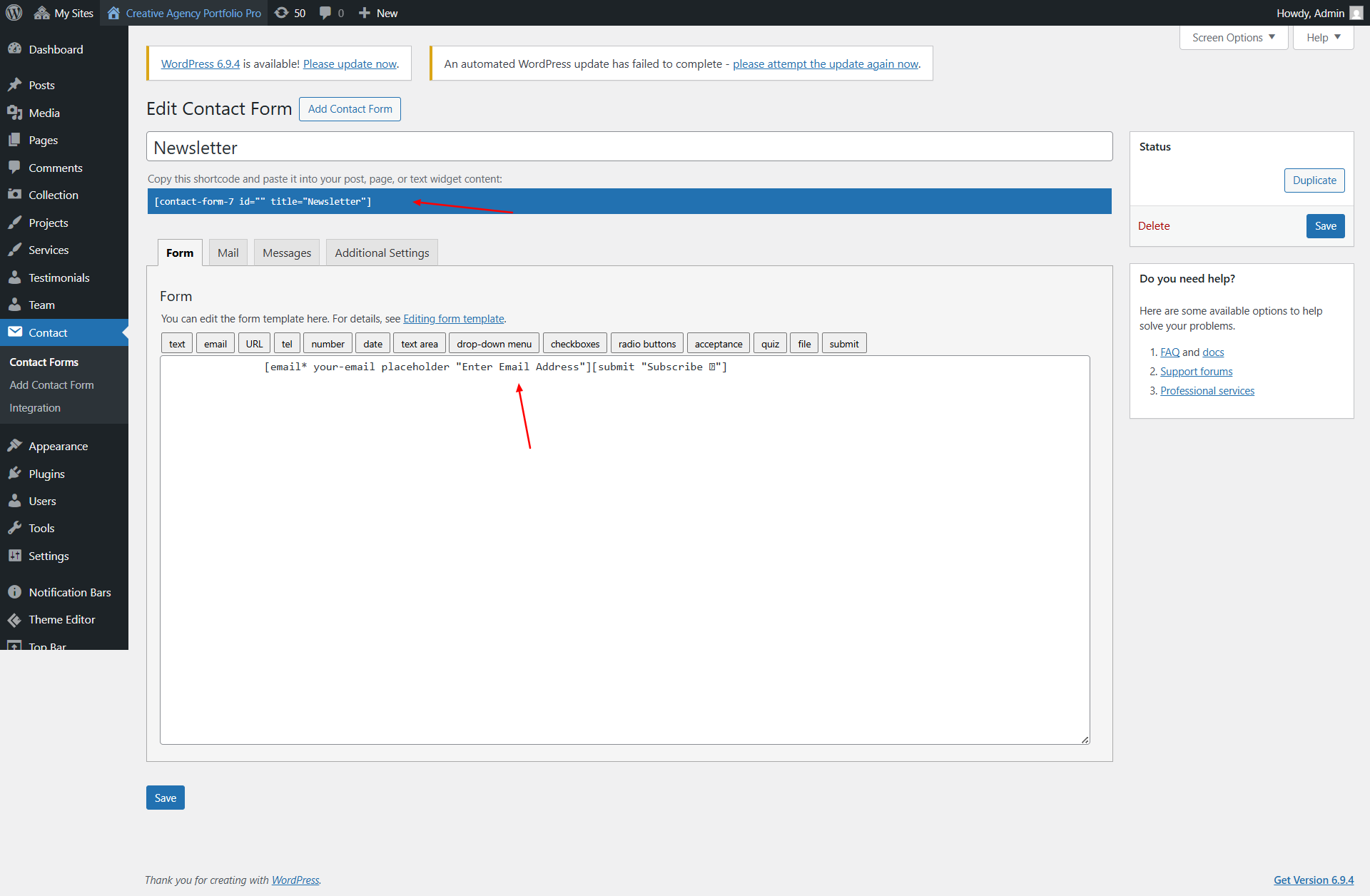
Edit the page title and insert your form shortcode.
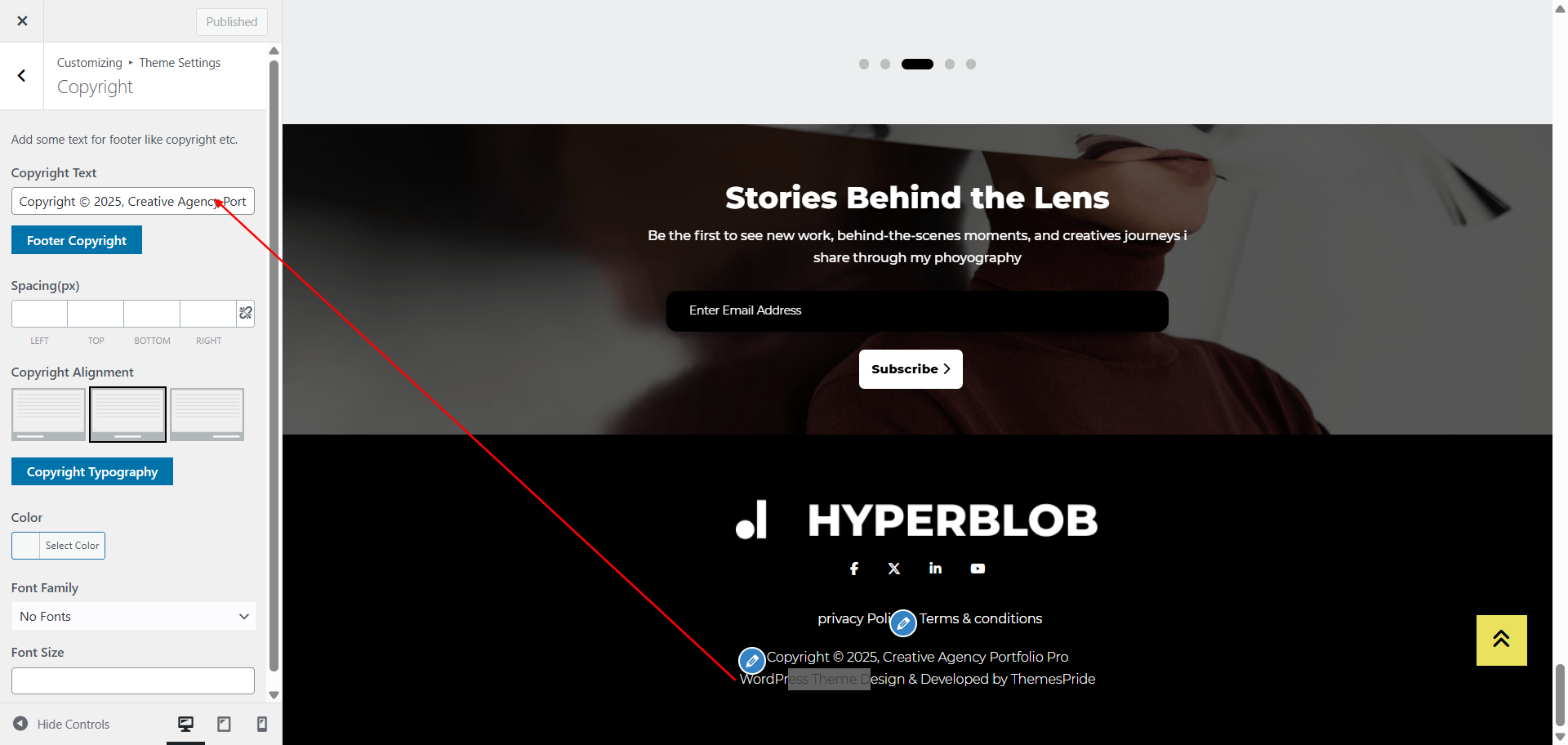
Configure "Copyright"
Description: Edit the copyright notice displayed in your site's footer.
Go to Theme Settings → Copyright.
Edit the copyright text field to customize the footer note.
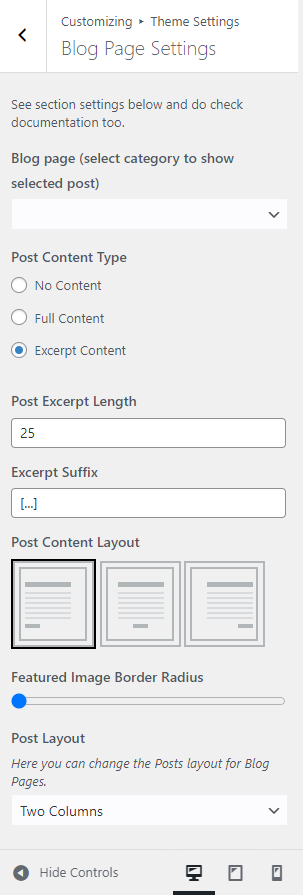
Configure "Blog Page"
Description: Manage global blog settings for your website.
This section contains global blog settings. To access it, go to Theme Settings → General Settings.
Configure "Single Post Page"
Description: Customize the layout and style of single blog post pages.
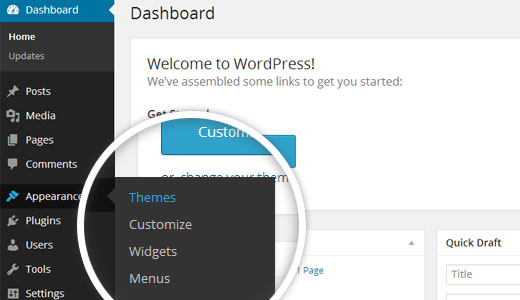
Access via Appearance → Customize → Theme Settings → Single Post Page.
Here you can customize layout, elements, and styling for single blog posts.

Configure "General Settings"
Description: Adjust overall theme configuration and settings.
This section contains overall theme configuration. Access it via Theme Settings → General Settings.

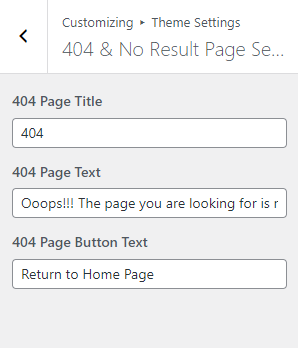
Configure "404 Page"
Description: Personalize the 404 error page content and design.
Go to Theme Settings → 404 Page Settings.
Here you can customize the content and design of your 404 error page.
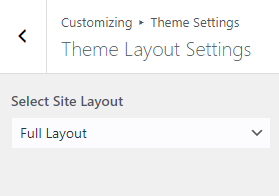
Configure "Theme Layout"
Description: Switch between full-width and boxed layout modes for your site.
Go to Theme Settings → Theme Layout Settings to switch between full-width and boxed layout modes.
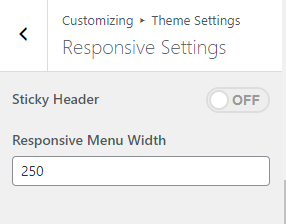
Configure "Responsive Settings"
Description: Configure responsive settings for optimal viewing on all devices.
Access via Theme Settings → Responsive Settings.
You can:
- Disable the sticky menu on mobile or tablet views
- Set the mobile menu sidebar width to fit your design preference